For iPhone, iPad and Android phones. Once it is installed, sign in.
The Resource Recycling Events app is where the schedule lives, where you find the people you want to meet, and where you ask speakers your questions. This guide takes you from a fresh download to a full diary of meetings. Each lesson has a short demo you can watch in a few seconds.
Ten minutes, once. Install, sign in, and learn the four tabs.
Lesson 01
Get the app
One app, called Resource Recycling Events, published by Resource Recycling, Inc. It works on iPhone, iPad and Android phones. There is no browser version this year, so the app is the way in.
Tap the button above, or search the App Store or Google Play for Resource Recycling Events. The icon is the Resource Recycling mark.
Install it
It takes about a minute. Nothing to configure.
Open it and allow notifications
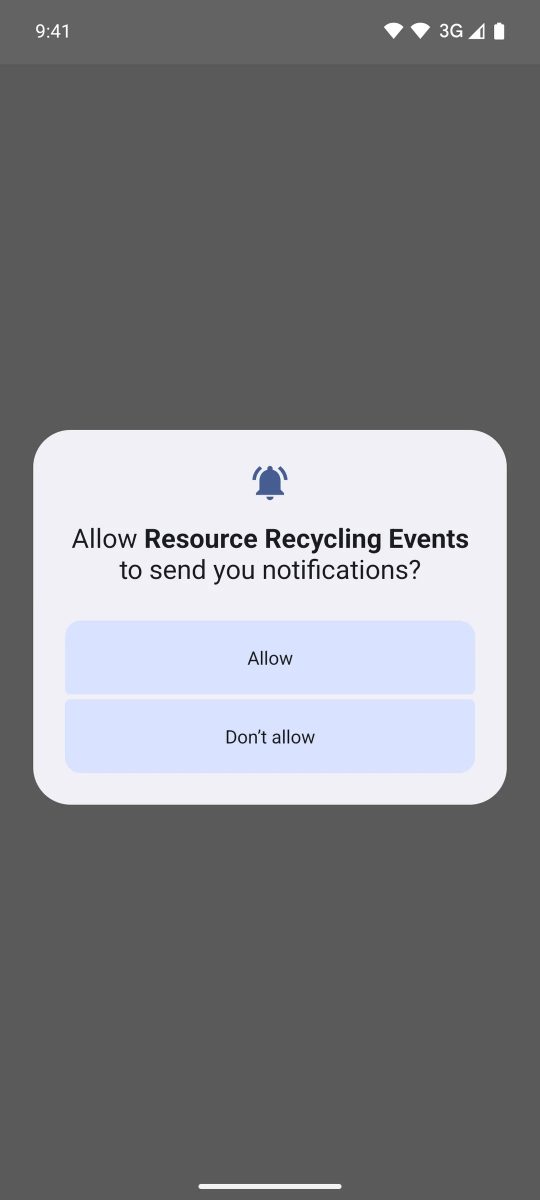
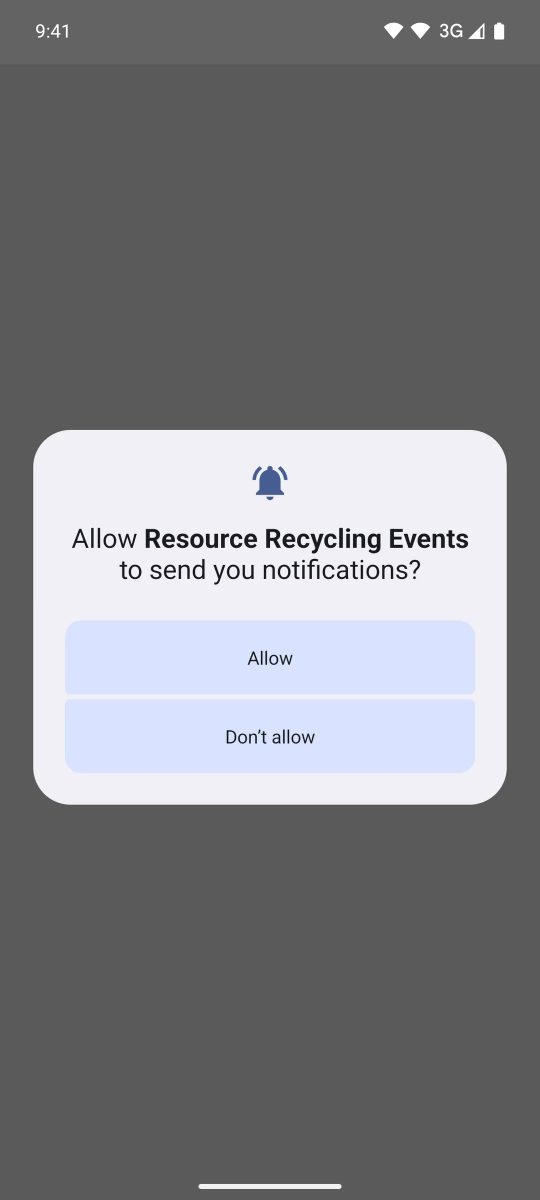
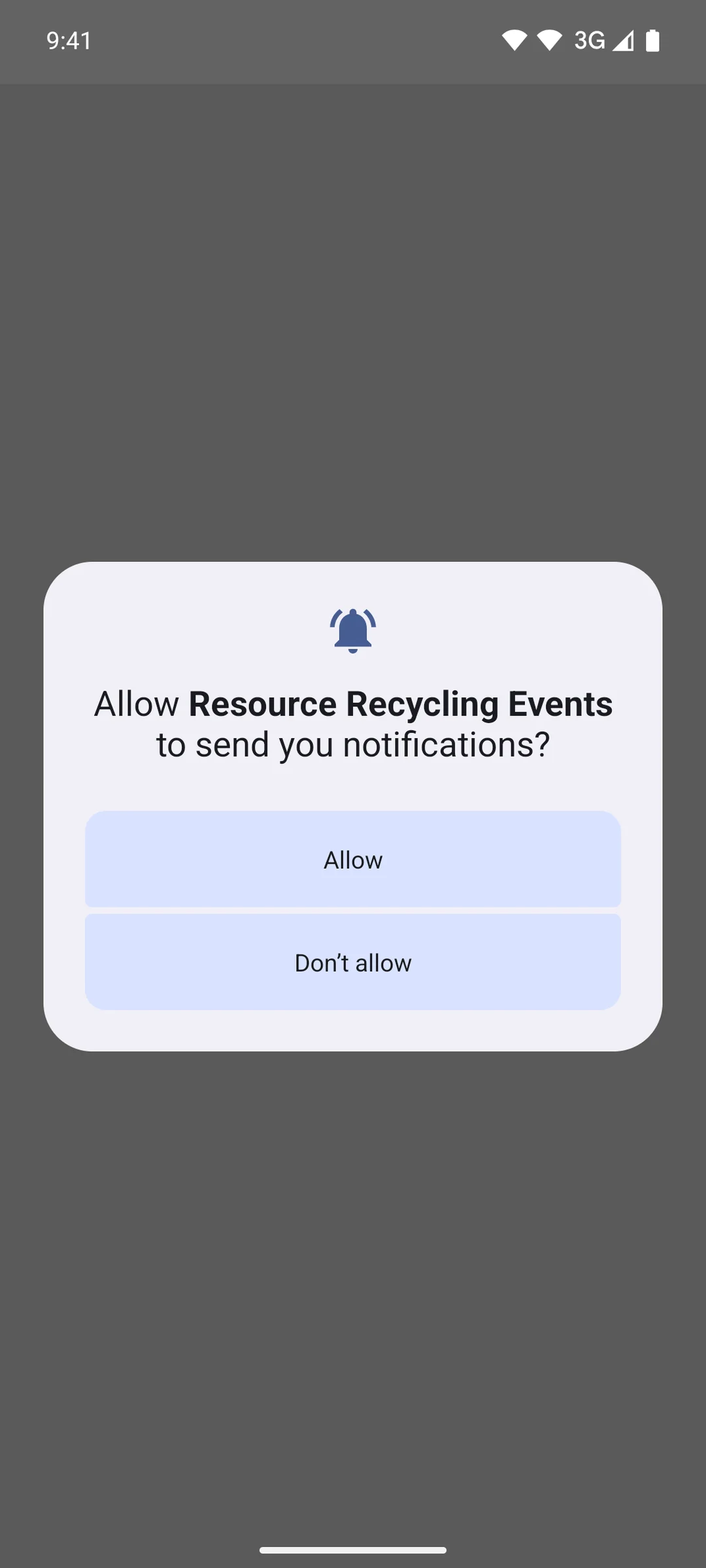
The first time it opens, your phone asks whether the app may send you notifications. Tap Allow. That is how meeting requests and messages reach you during the show.
Pick the conference
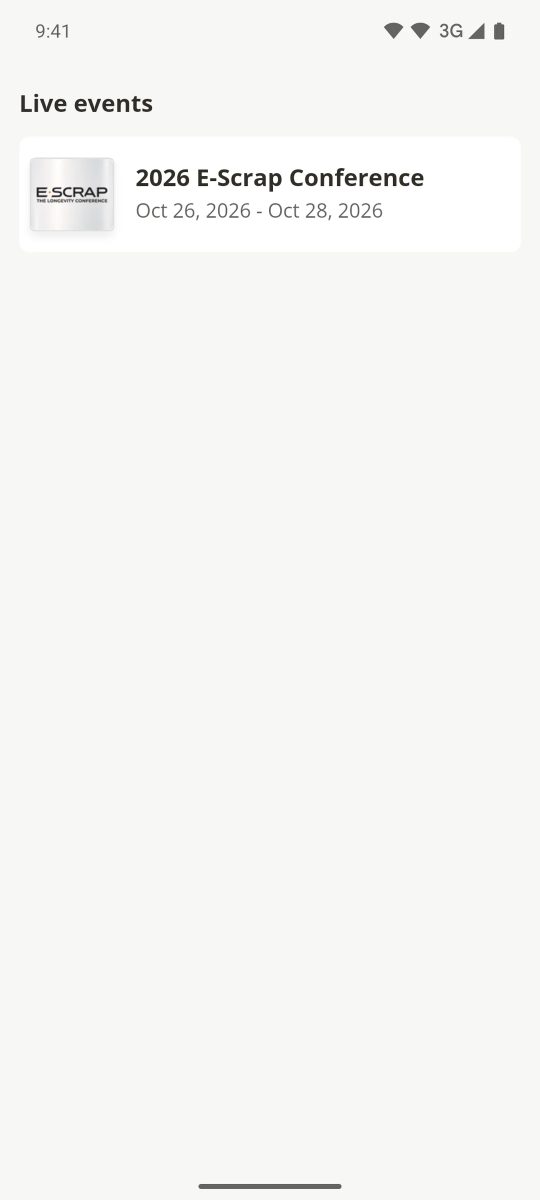
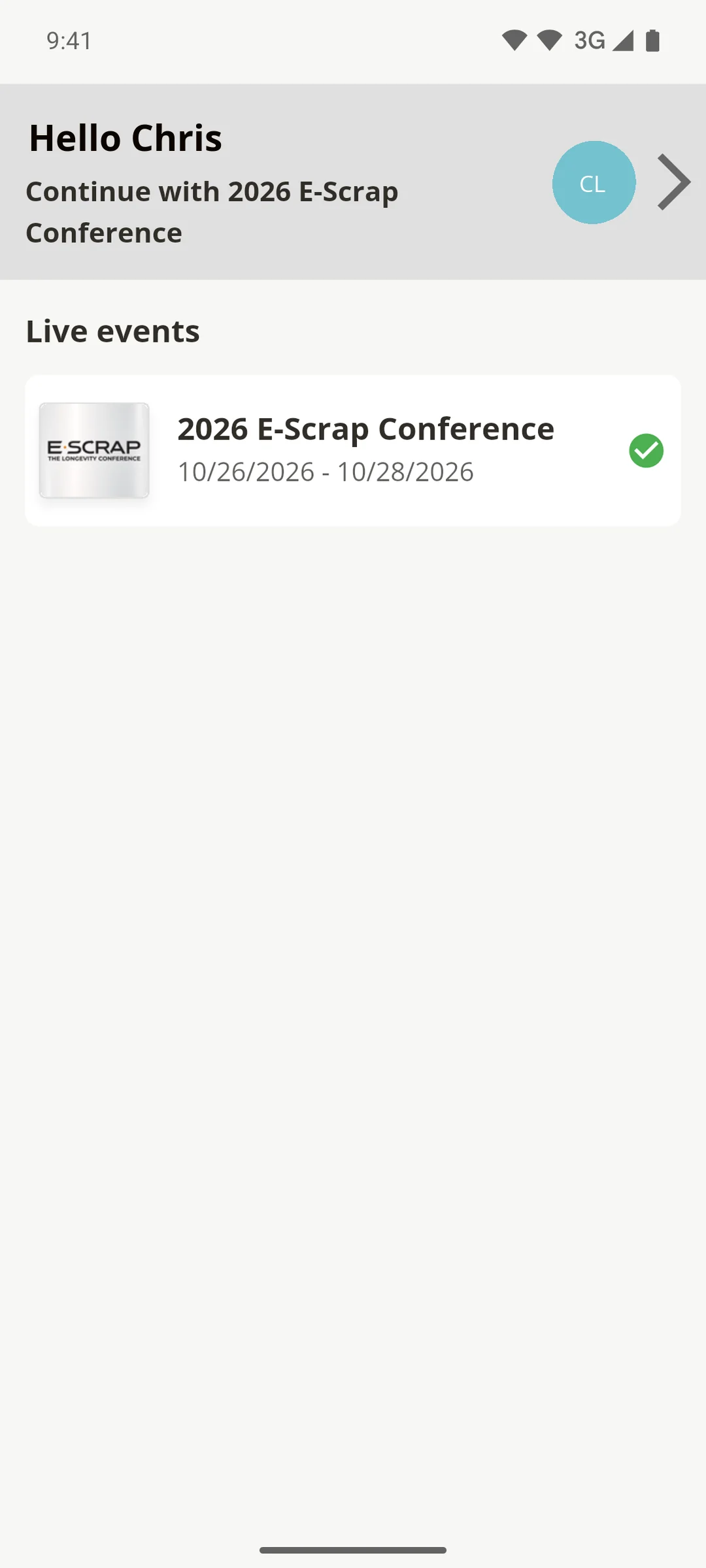
The app covers several Resource Recycling events, so it lists them. Tap 2026 E-Scrap Conference under Live events and you are at the sign-in screen.
Good to know
It does not run on a laptop or on a Mac. Phone or tablet only.
You need the email address you registered with. Keep your registration confirmation email handy for the next lesson.
Demo: the first time you open it (8 seconds)
Lesson 02
Sign in
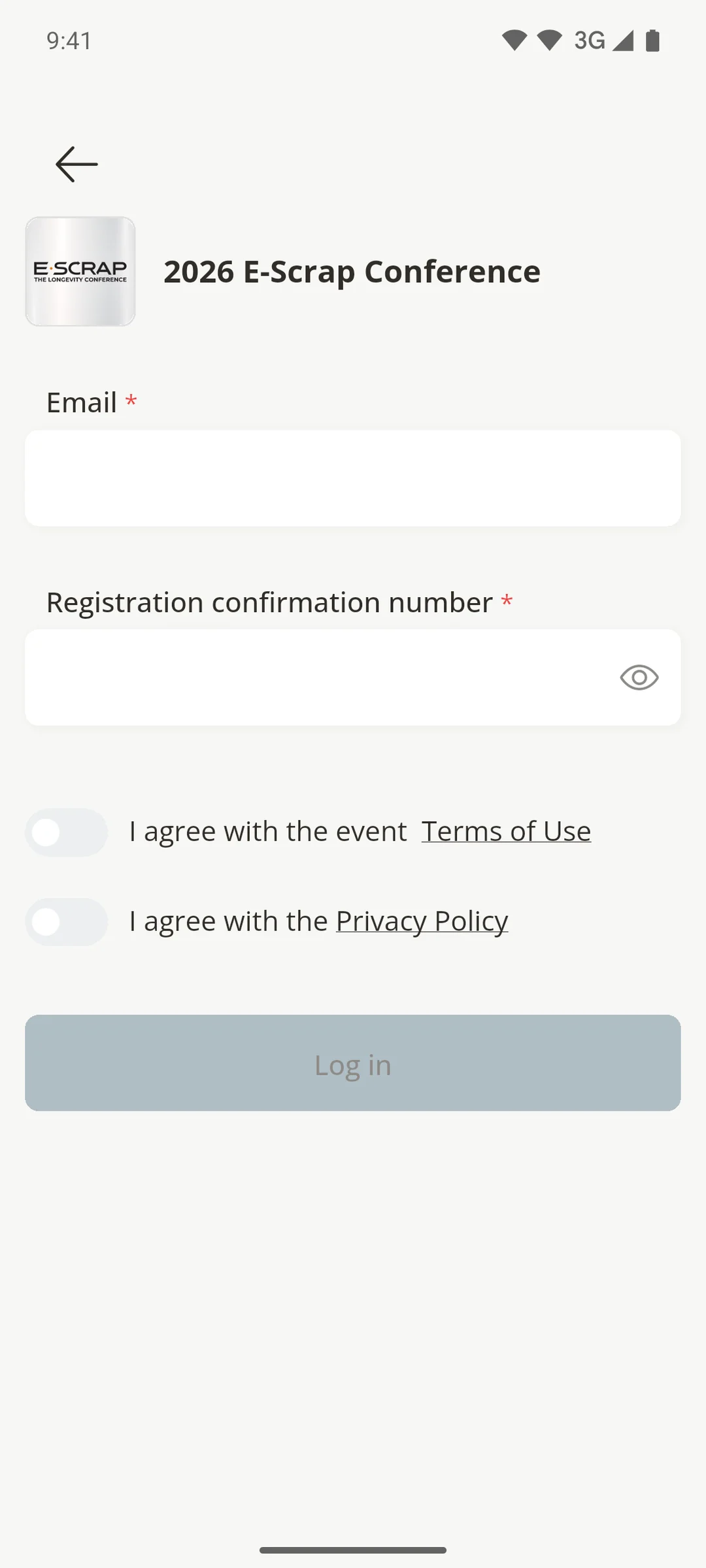
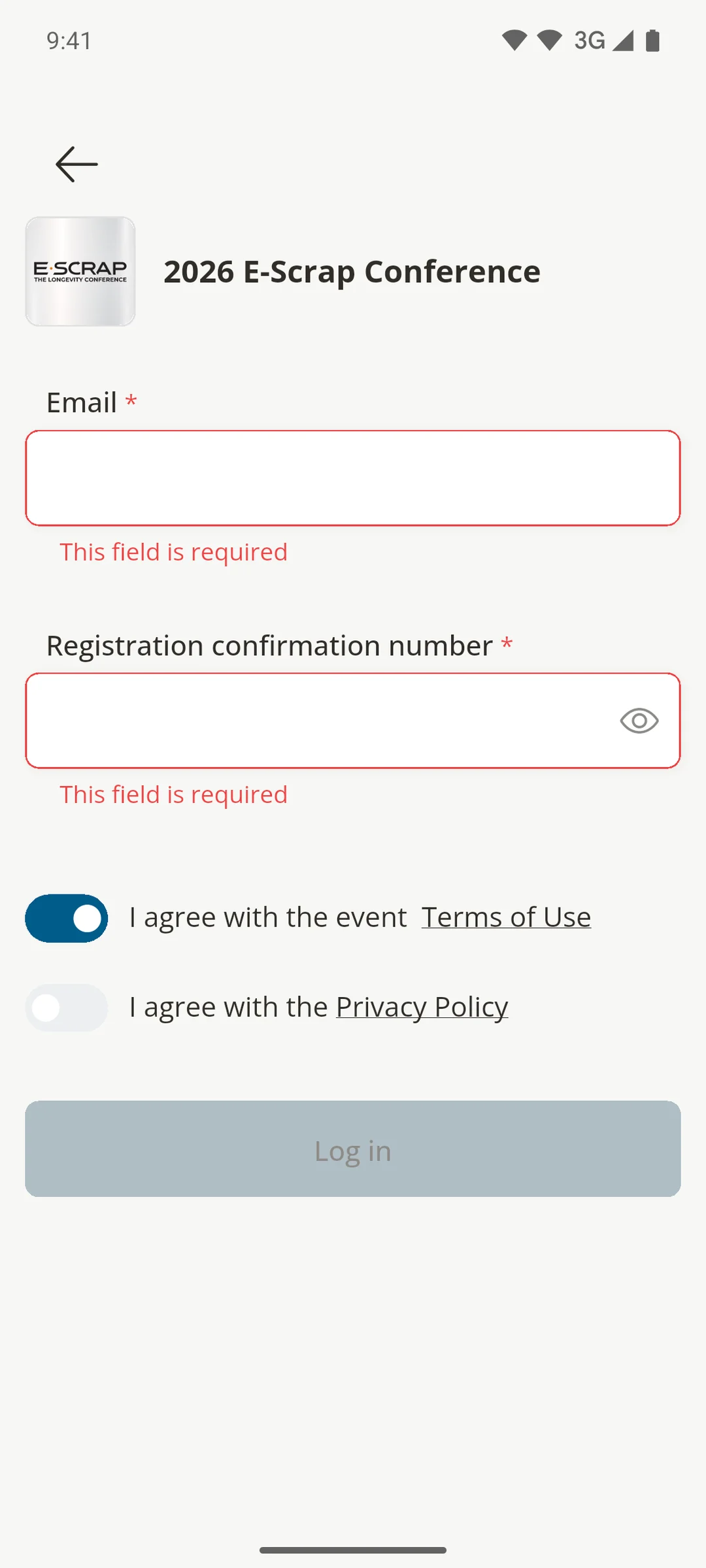
You sign in with the email address you registered with and your registration confirmation number. That is the whole trick, and it is the thing most people get stuck on.
Open the app and tap 2026 E-Scrap Conference
It sits under Live events.
Email: the address you registered with
The address your confirmation email was sent to. If a colleague or assistant registered you, it is the address they used.
Registration confirmation number
It is in your registration confirmation email and in the launch email that pointed you to this guide. Tap the eye icon to check what you typed.
Switch on both agreements
The two small switches on the left, for the Terms of Use and the Privacy Policy. Tap the switch itself, not the words. The Log in button becomes active once both are on.
Tap Log in
You land on Home. You stay signed in from now on.
Next time
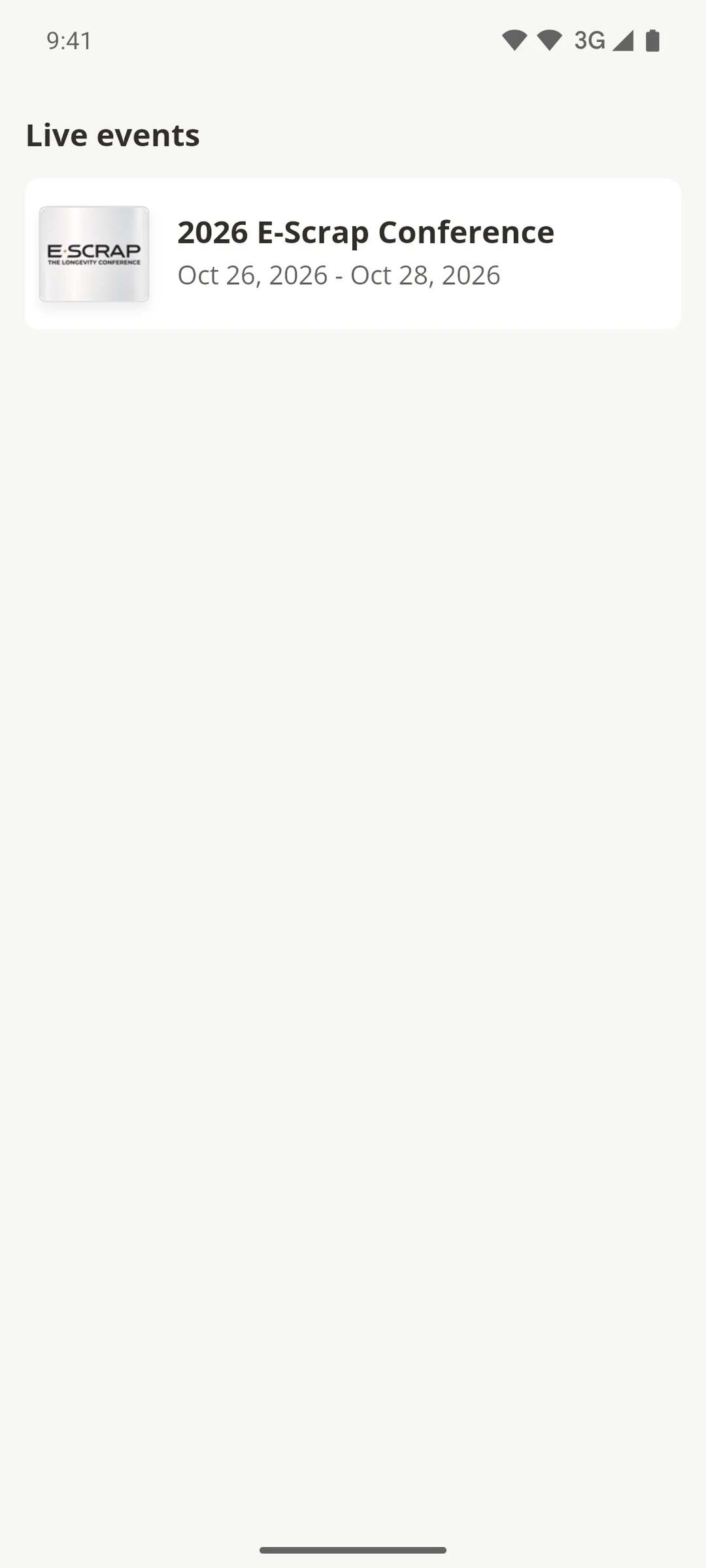
Opening the app later shows Hello and Continue with 2026 E-Scrap Conference. Tap it and you are straight in, no password needed.
If it will not let you in
There is no "forgot password" link, because your password is your confirmation number. Find it in your registration email, or ask the registration team to resend it.
Check the email address for typos and make sure it is the one you registered with, not a different work address.
Several wrong attempts in a row lock the account for a while. Stop, check both details, and try again a little later rather than repeating.
Tapping Log in with empty boxes shows This field is required under each. Fill them in and try again.
Demo: sign in for the first time (16 seconds)
Pick the conference
The sign-in form
Later launches: just tap Continue
Empty boxes get a red reminder
Lesson 03
Find your way around
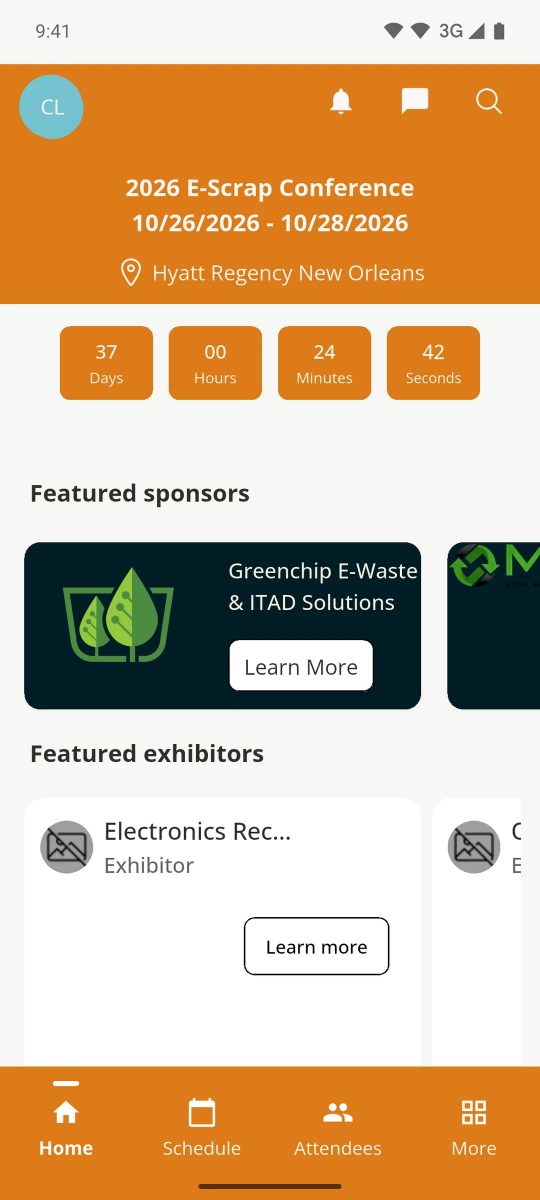
Four tabs along the bottom, four icons along the top. That is the whole map.
Bottom tab
What is there
Home
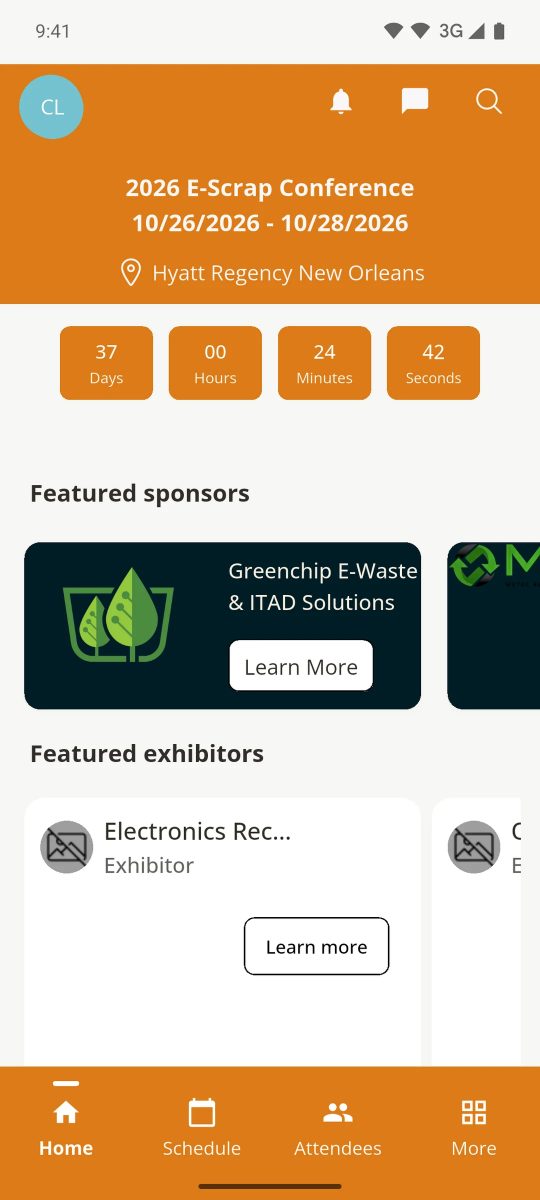
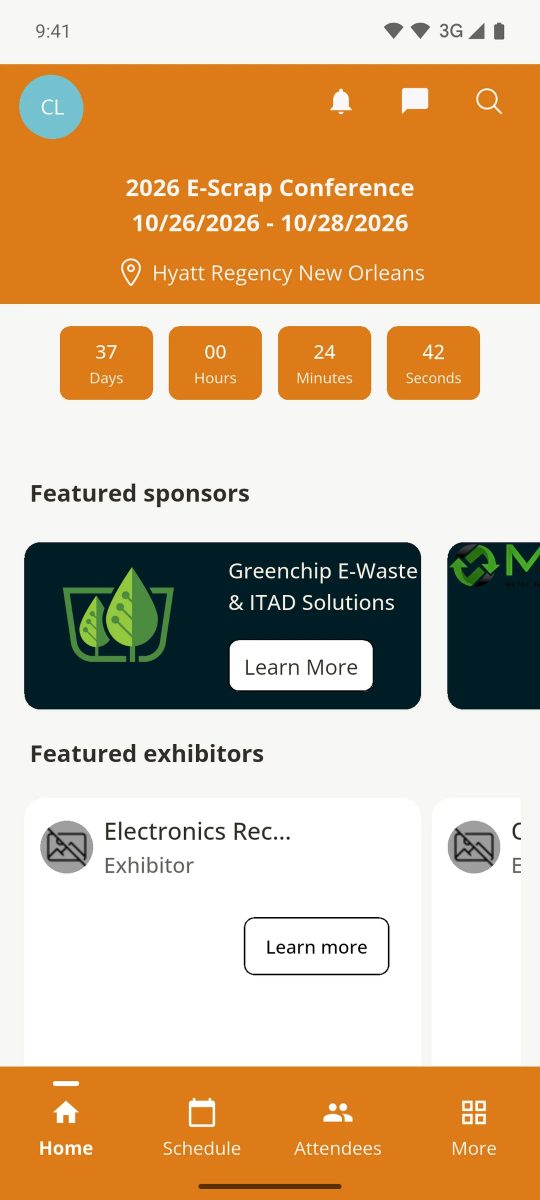
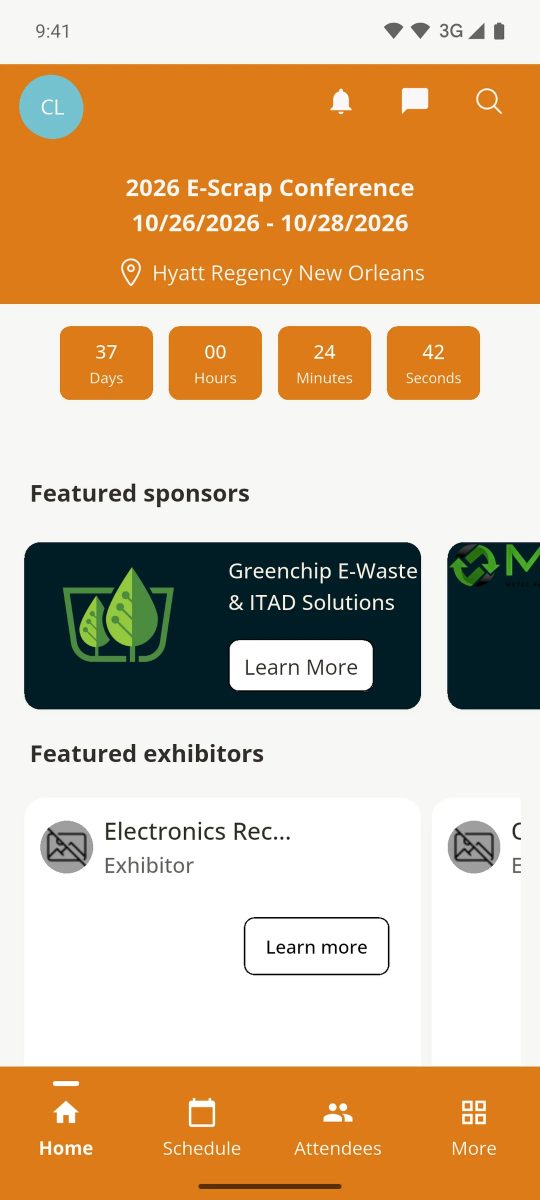
The countdown, featured sponsors and exhibitors, and the venue. Tap the Hyatt Regency line to open it in your maps app.
Schedule
Every session by day, your meetings under My Agenda, and the button to request one.
Attendees
Everyone registered, A to Z, with search, follow and message.
Your profile: photo, details, notification settings, sign out.
Bell
Alerts, including meeting requests sent to you.
Speech bubble
Your messages with other attendees.
Magnifier
Search across sessions, people and exhibitors.
Going back
Most screens have an orange arrow or an X at the top. Your phone's own back gesture works too.
Demo: a 20 second tour
Home
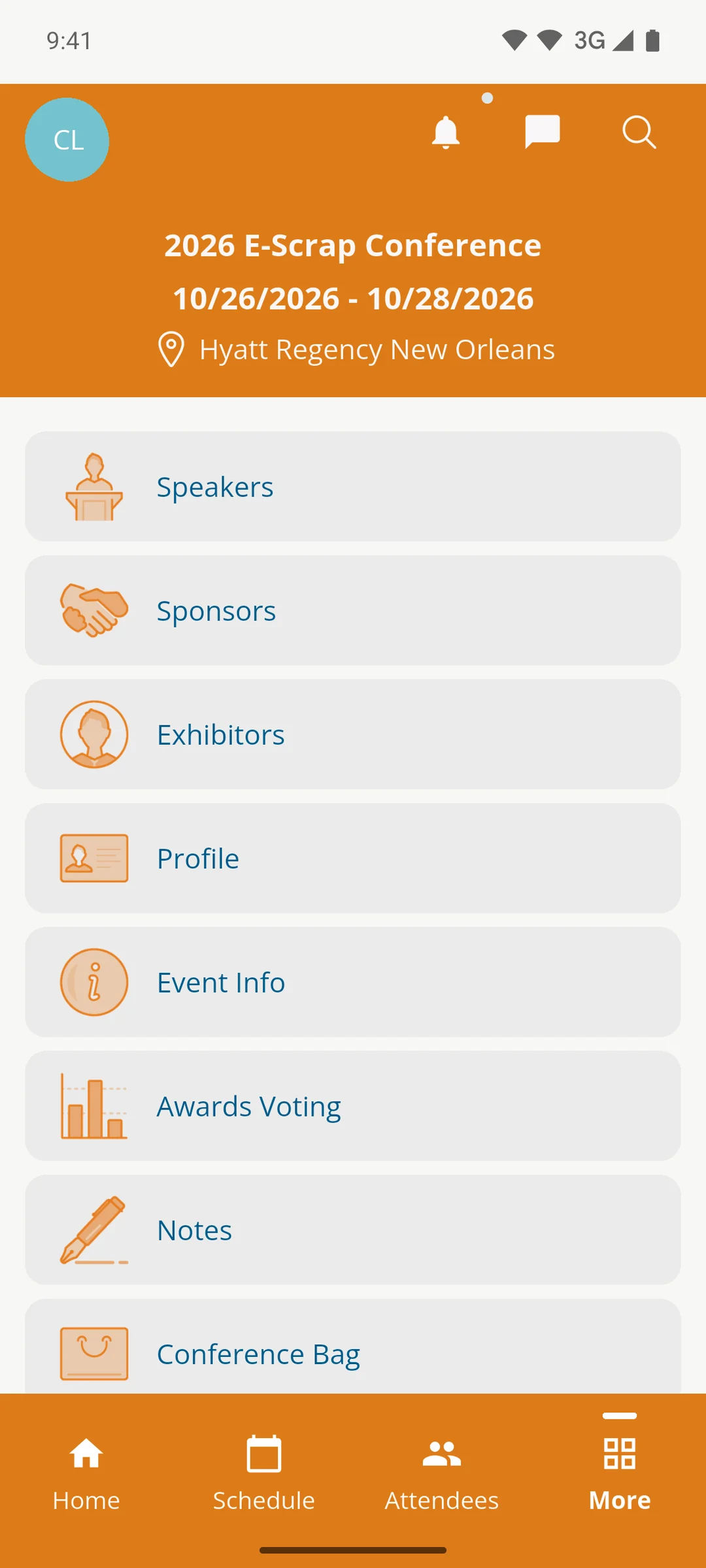
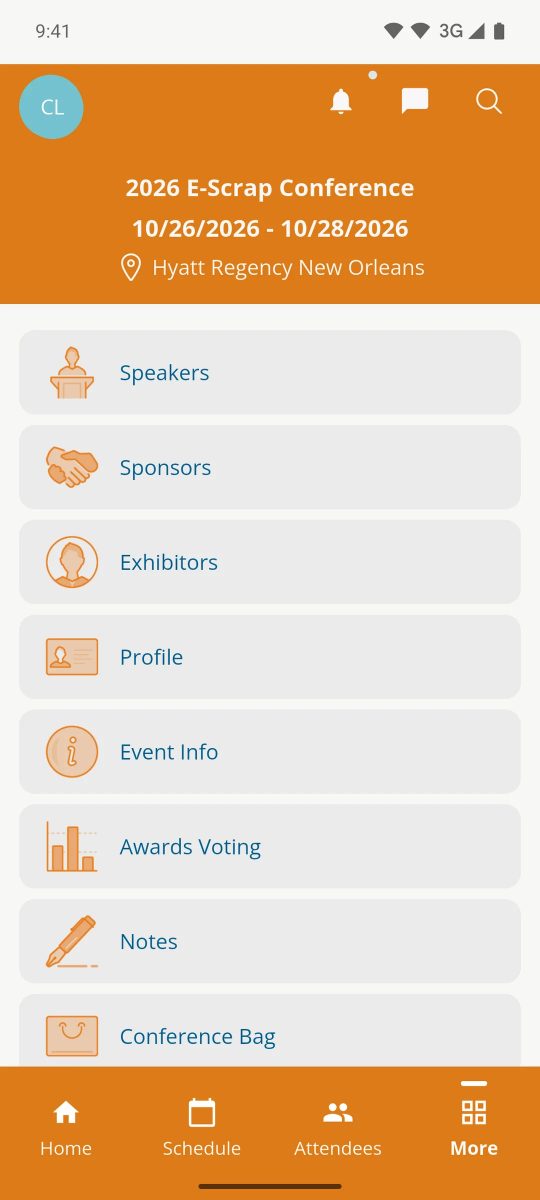
More
Bell: your alerts
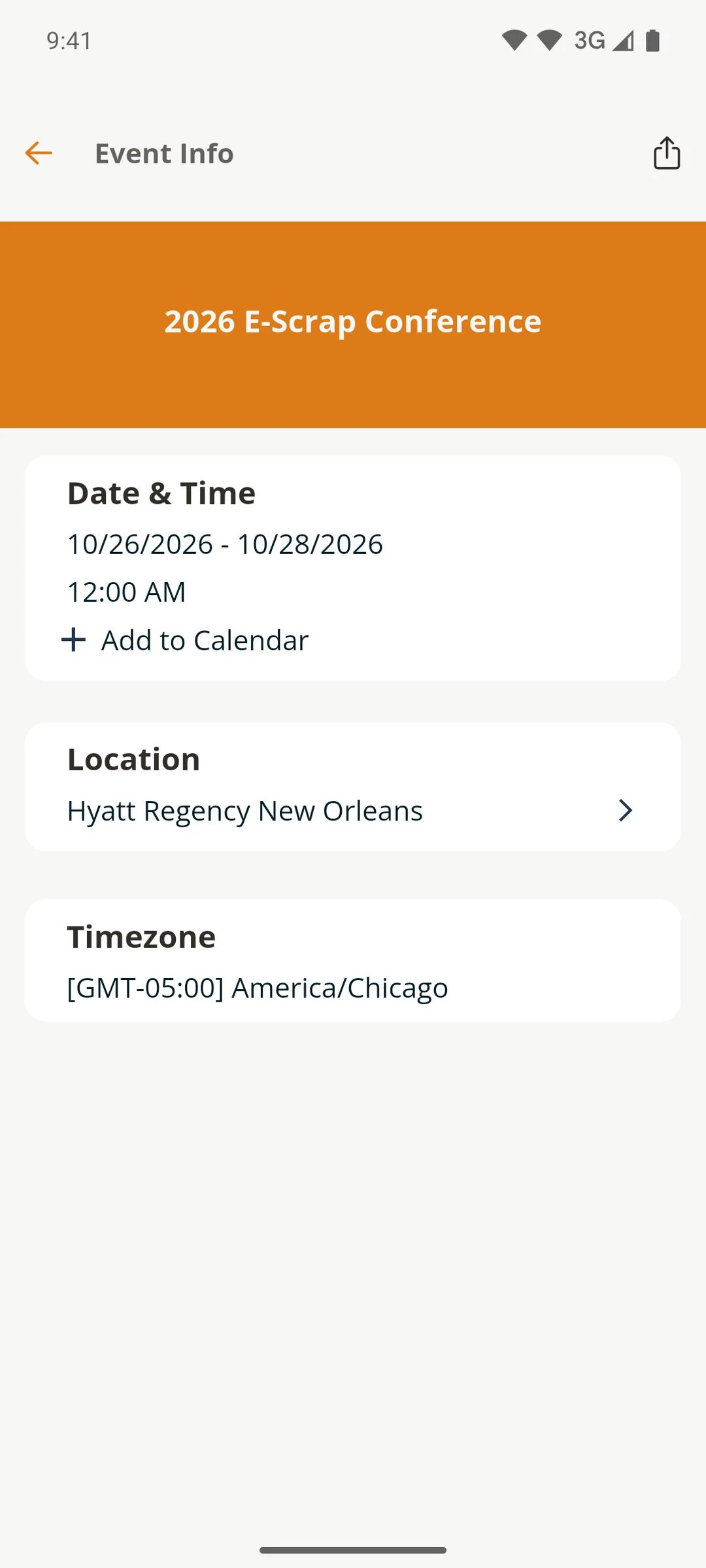
More, then Event Info
Part 2
The conference
The program, the people on stage, the companies in the hall, and your questions.
Lesson 04
Plan your days
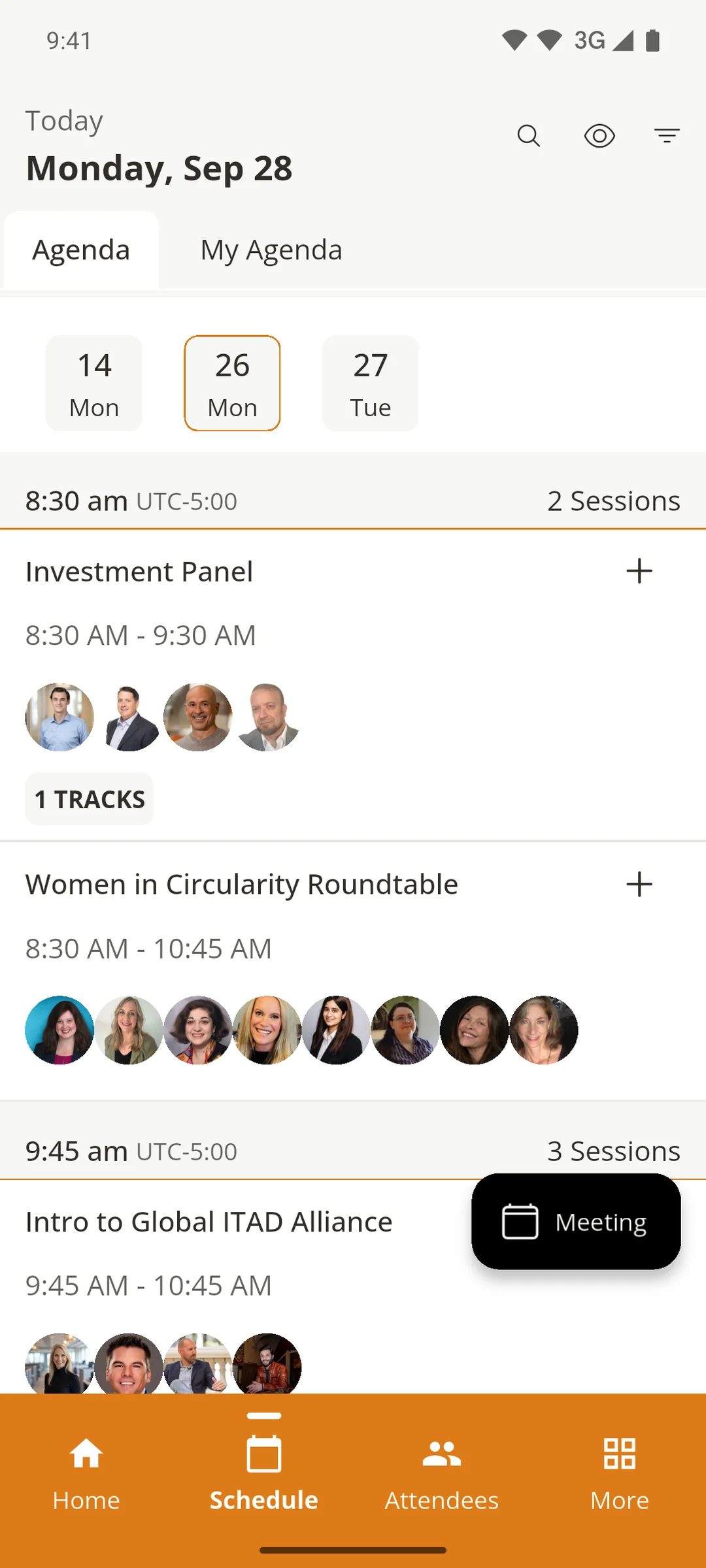
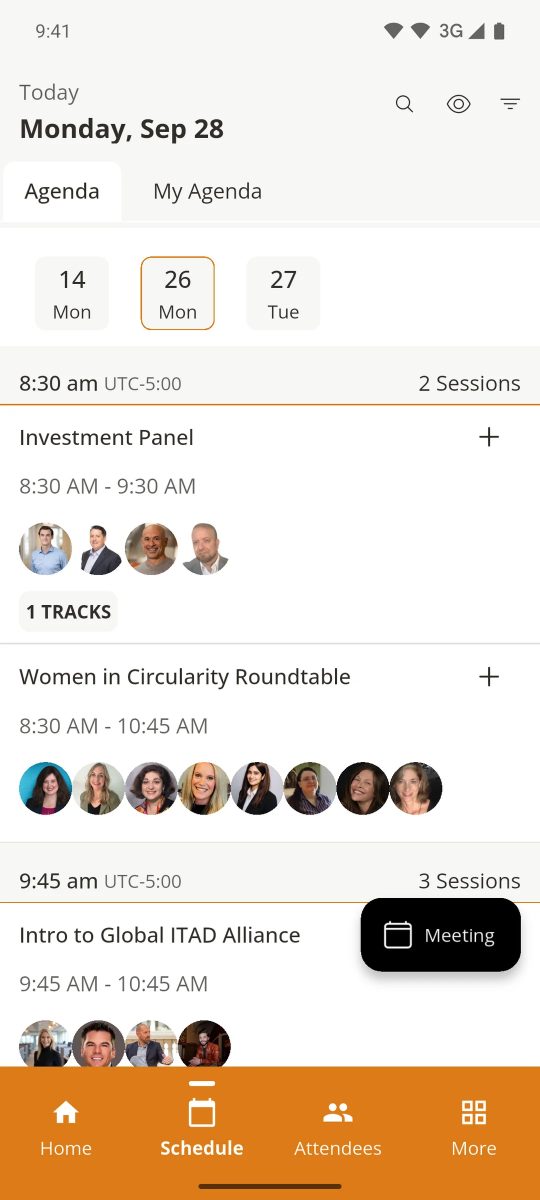
Schedule lists every session by day. Tap the plus sign on the ones you want and the app saves your pick, so you can build your plan for the three days as you read.
Tap Schedule, then a day
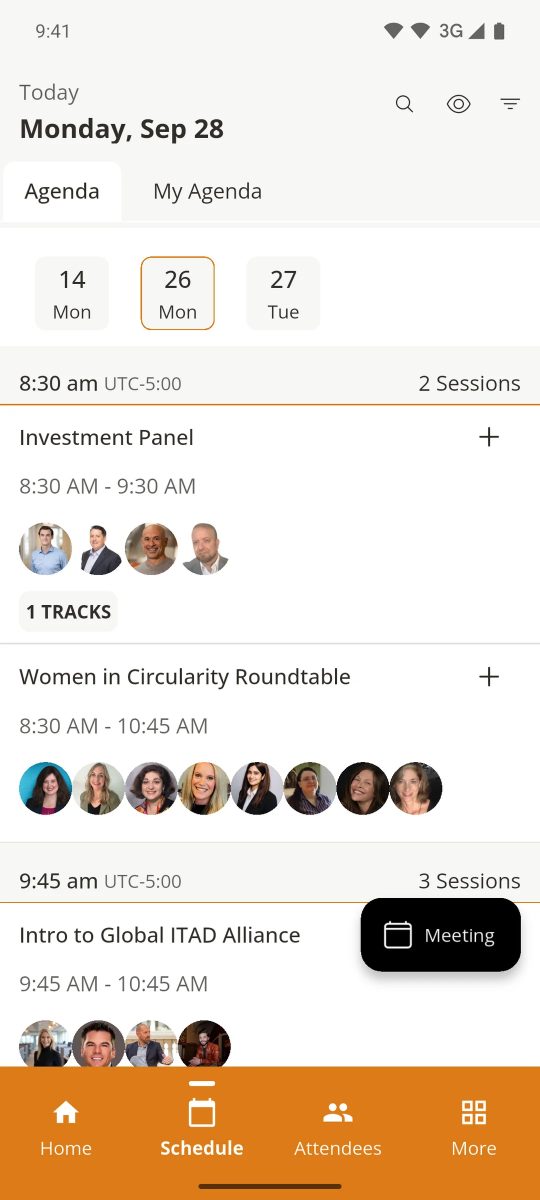
The day tabs sit under the search bar: 26, 27 and 28 October. Sessions are listed by start time in New Orleans time.
Tap + on a session you want to attend
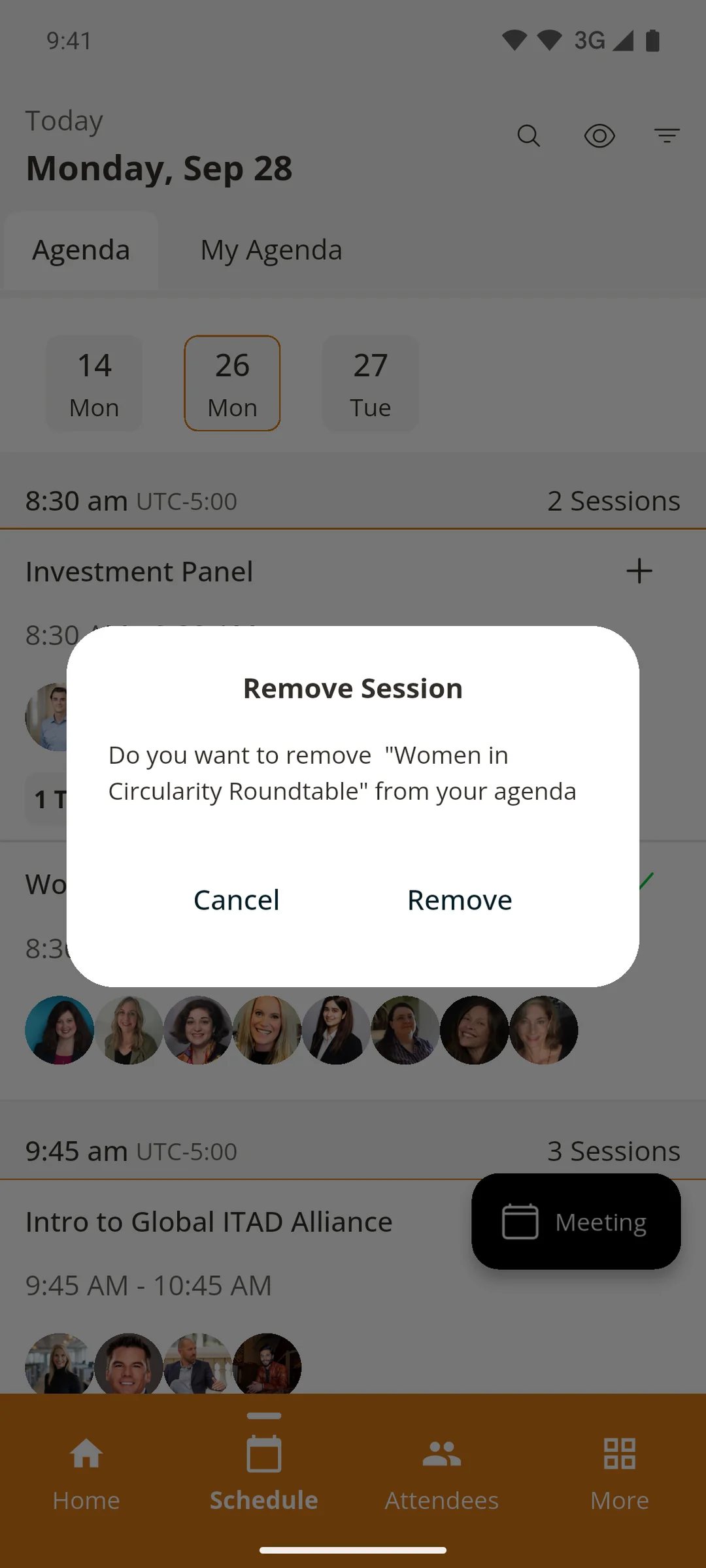
The plus turns into a green tick. Tap the tick to take it off again; the app asks you to confirm.
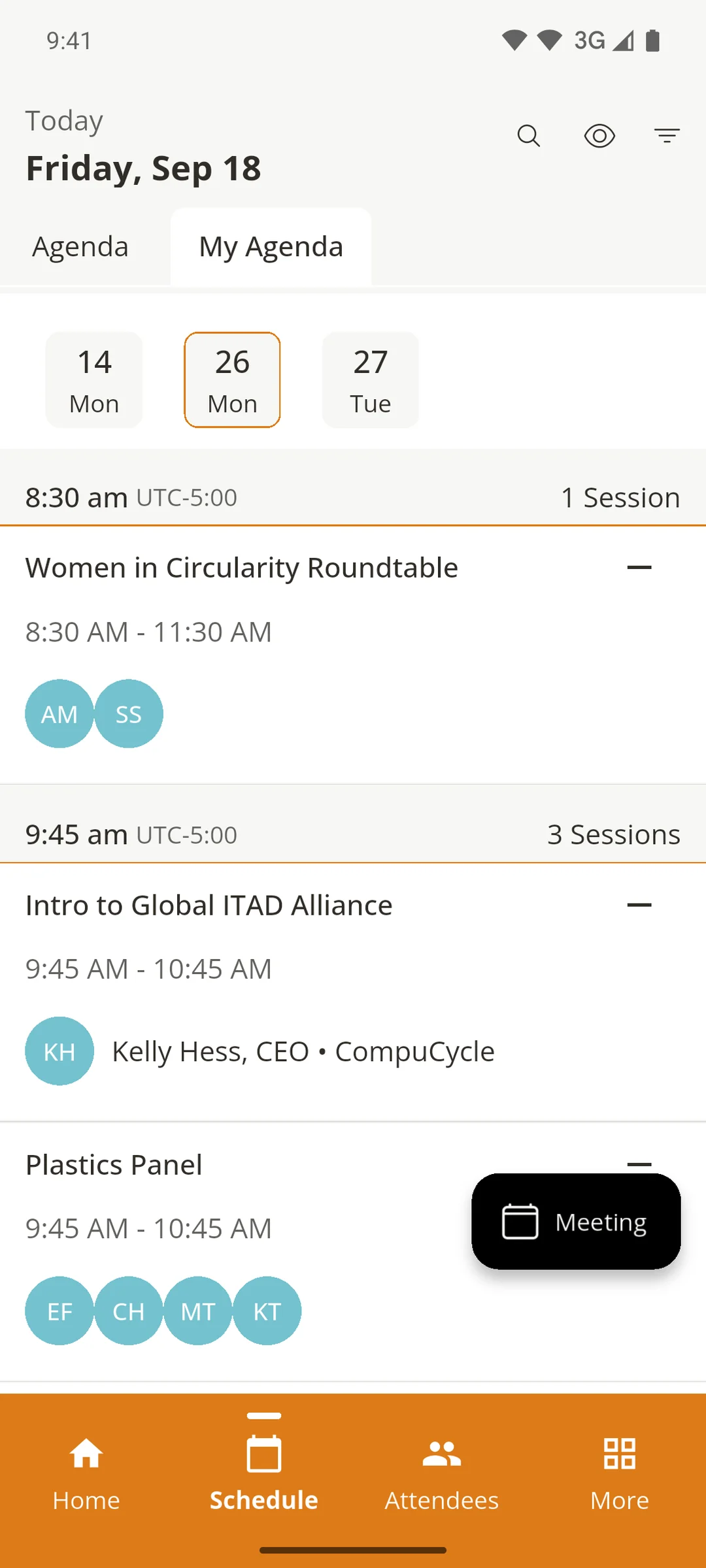
Open My Agenda
The second tab at the top, next to Agenda. It lists the meetings you have arranged, day by day. Your session picks are not appearing there at the moment: see the note below.
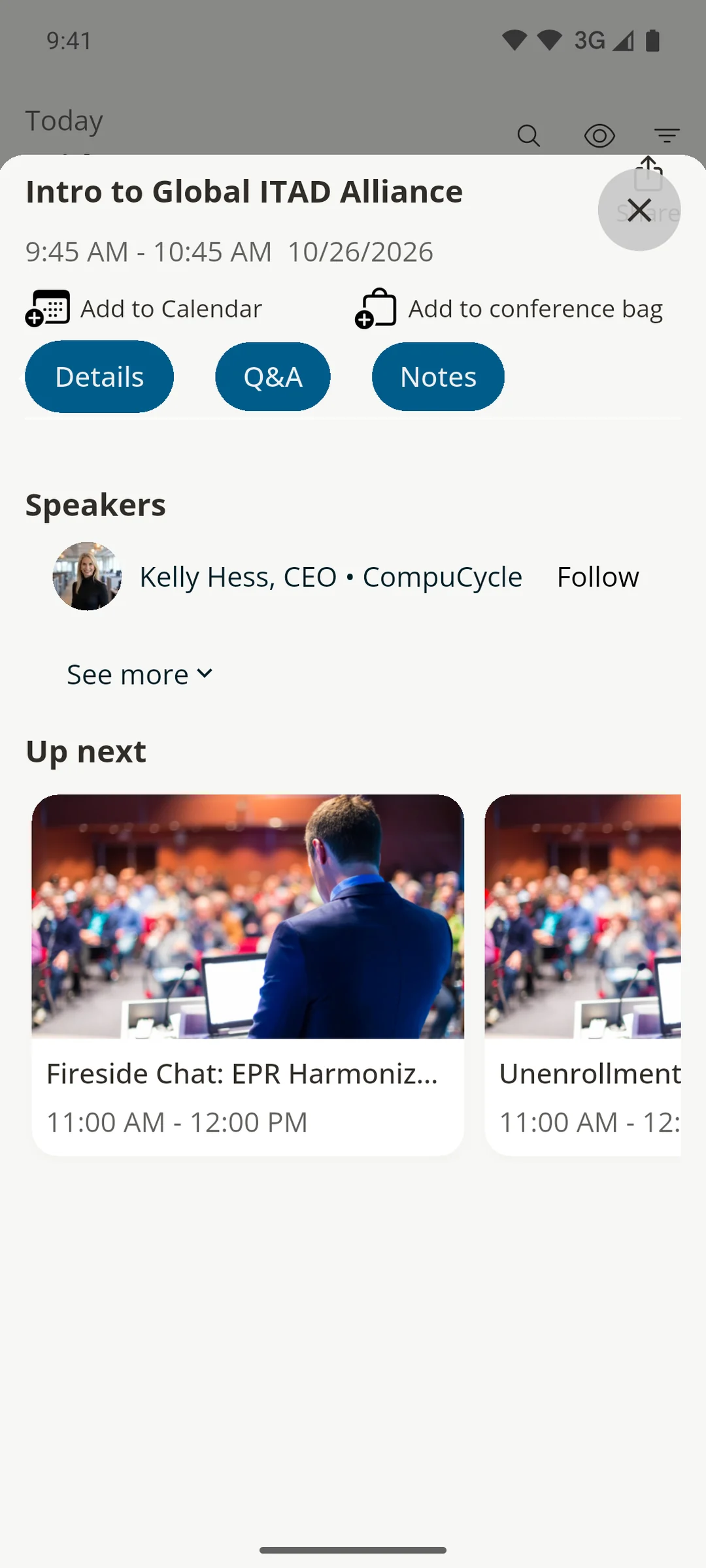
Tap a session for the details
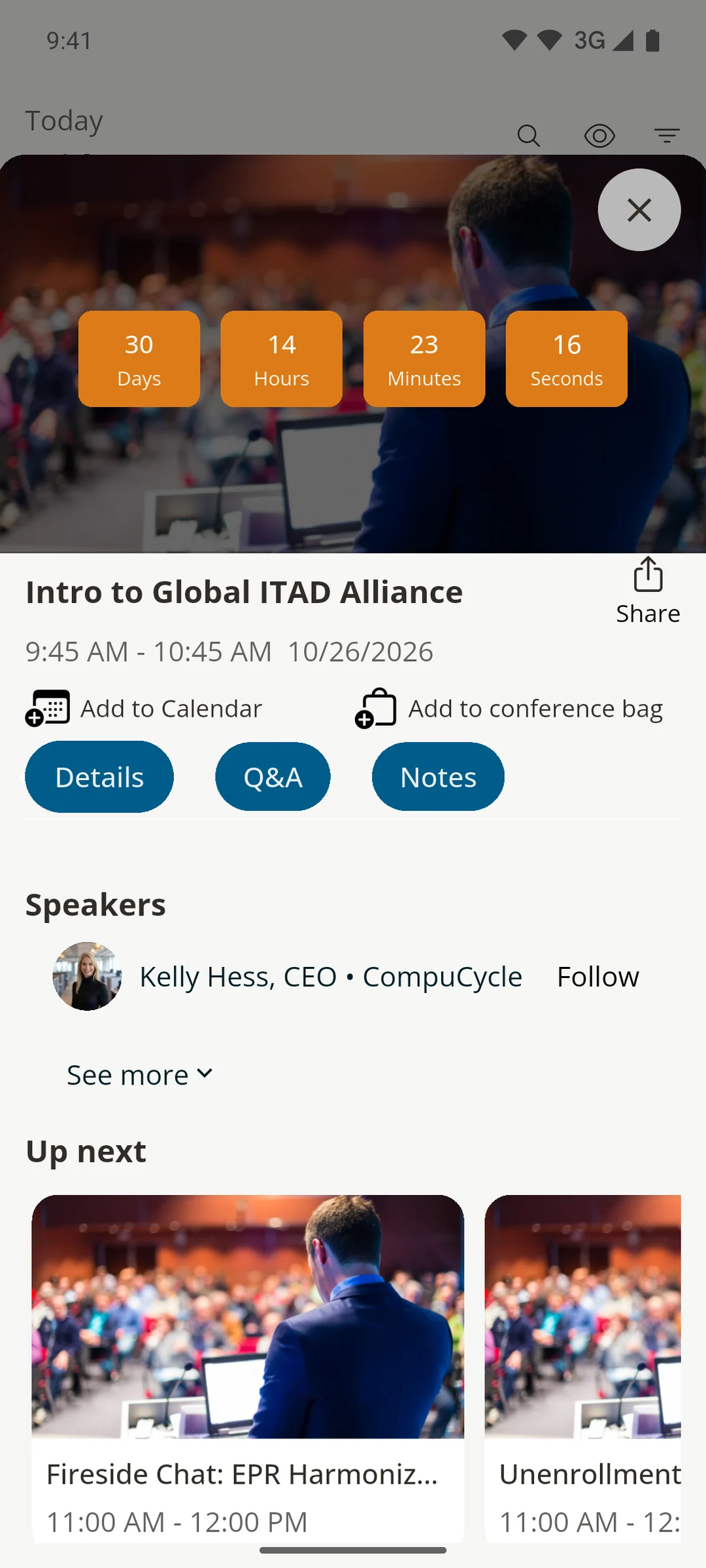
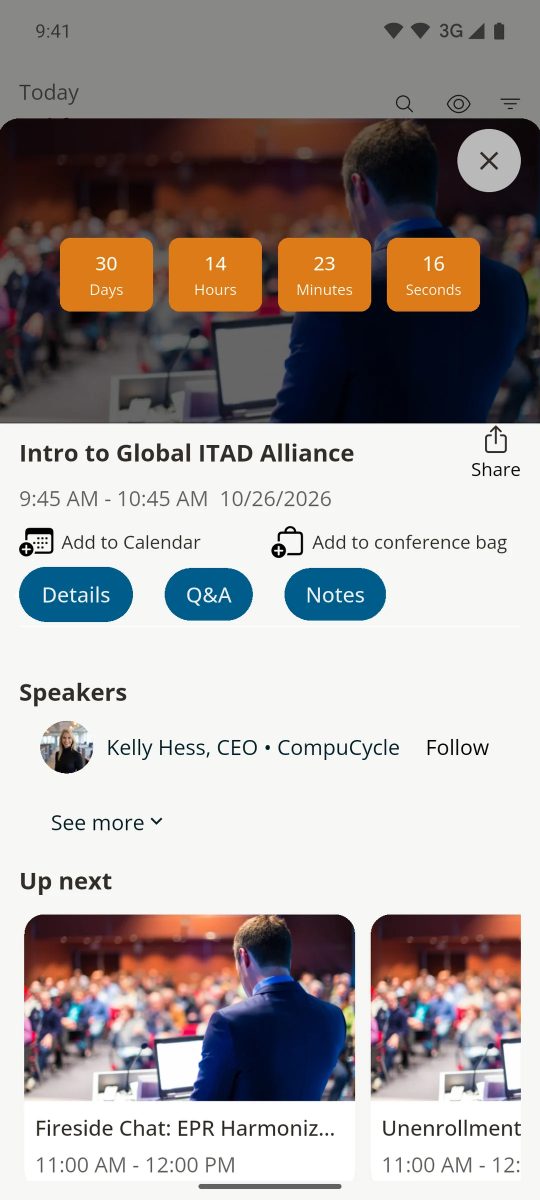
Speakers, the description, Share, Add to Calendar (puts it in your phone's calendar) and Add to conference bag. The Q&A and Notes tabs are covered in lessons 6 and 11.
Finding things faster
The magnifier at the top searches session titles.
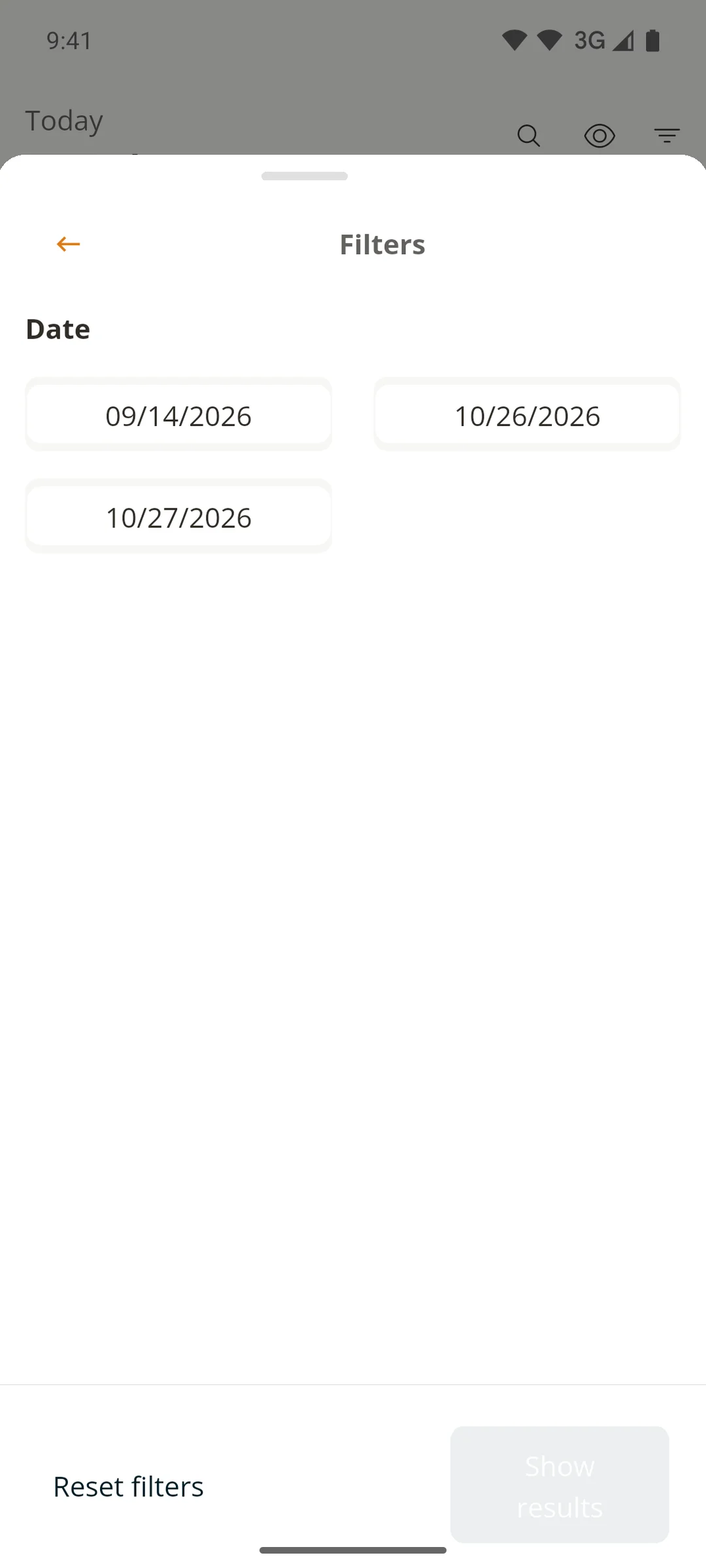
The filter icon narrows the list to a date. The eye icon changes the view, for example grouped by room.
Tap a speaker's name on a session and then Follow to keep them in your Speakers list.
About times
Session times are shown in New Orleans time (marked UTC-5:00) whatever your phone is set to, so what you see is what is on the wall.
Your ticks are saved, My Agenda is not showing them yet
Tap the plus sign and the app records your pick: the tick stays on the session, so nothing is lost. Right now the My Agenda tab lists only your meetings, not the sessions you ticked. We have reported it and this page will say so the day it is fixed. Until then, find your picks by their green tick on the Schedule tab, and use Add to Calendar on a session to put the ones that matter into your phone.
Demo: build your own schedule (16 seconds)
Plus to add, tick means added
Session details and speakers
My Agenda, with picks showing
Removing asks first
Filters
Lesson 05
Speakers, sponsors and exhibitors
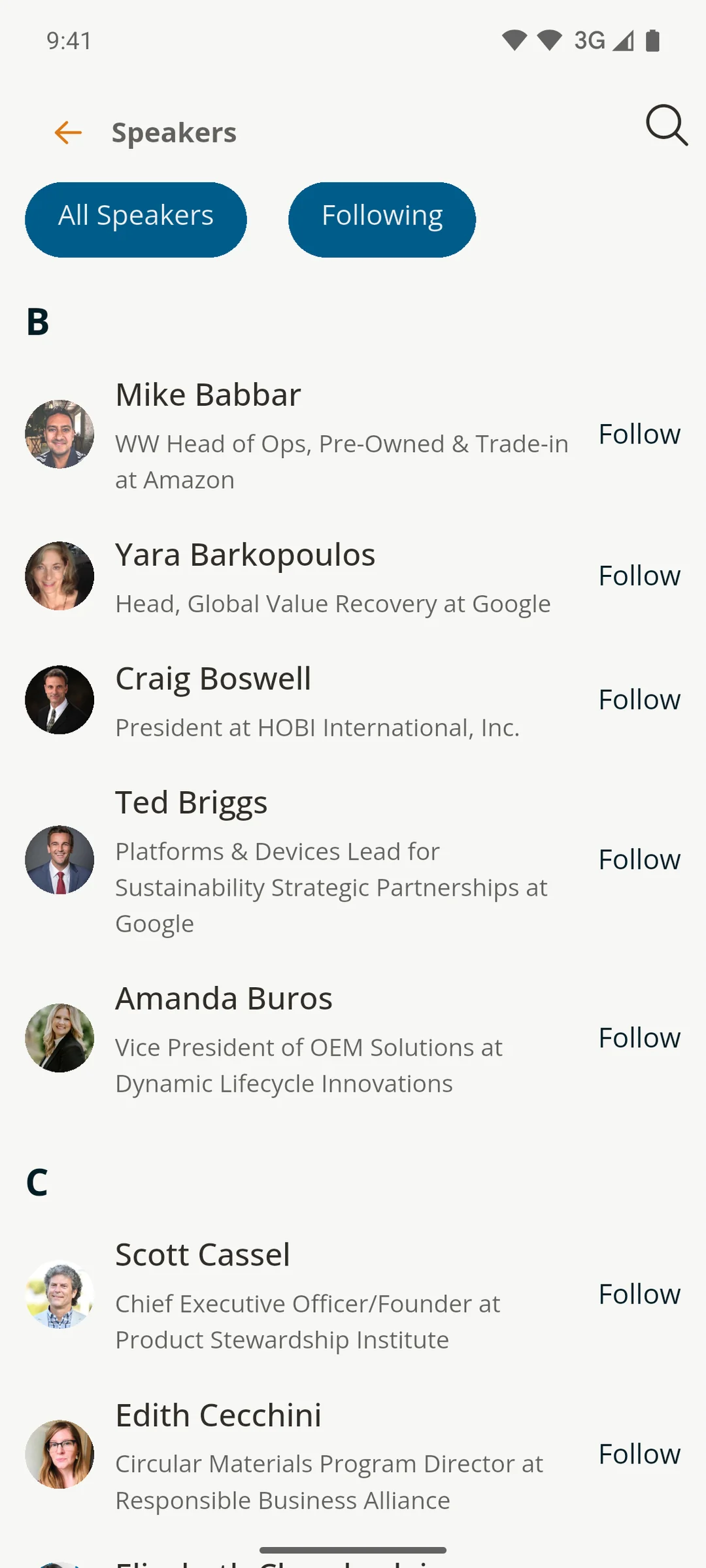
All three live under More. Each has a search, a Following filter, and a card you can open for the details.
List
What you will find
Speakers
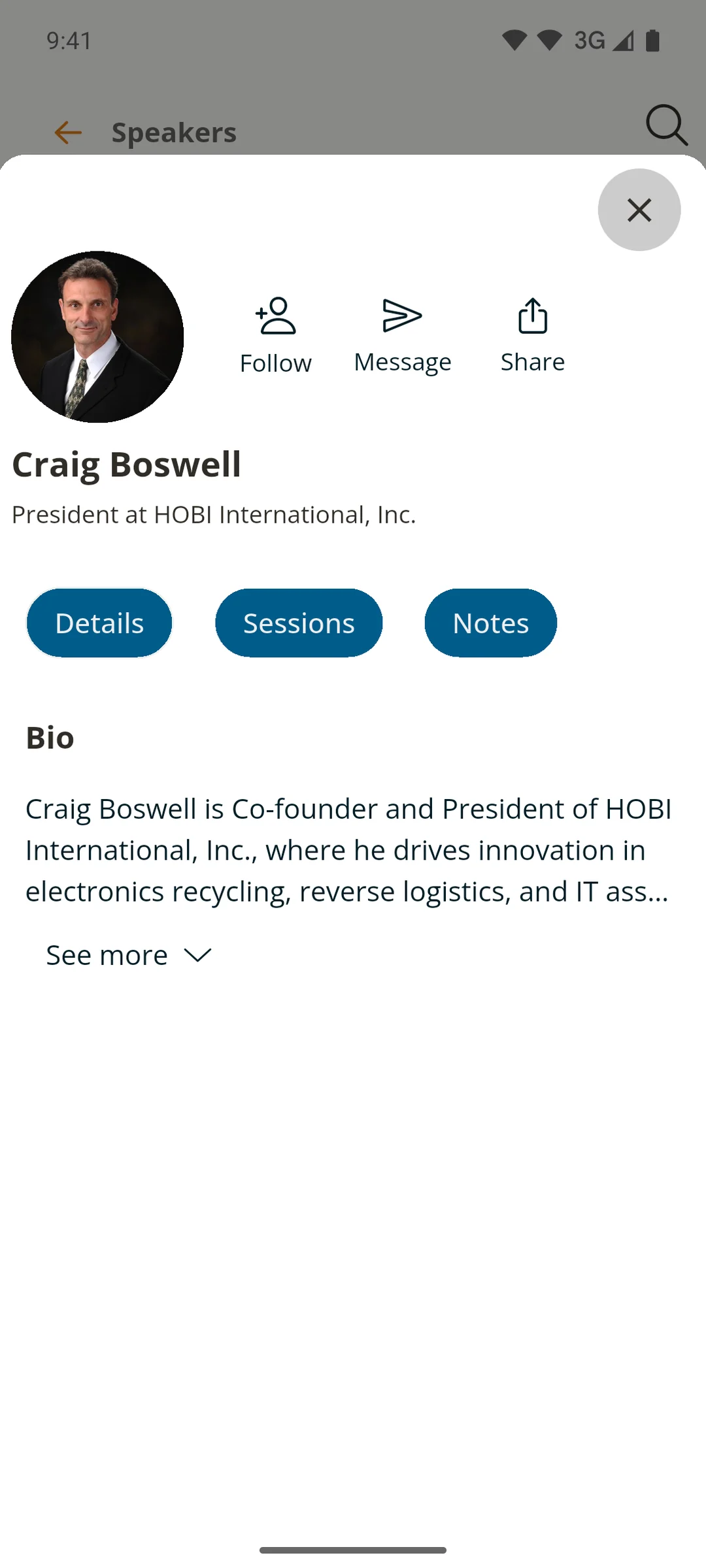
A to Z with photos and bios. Open a speaker for their Sessions tab, then Follow to keep track of them.
Sponsors
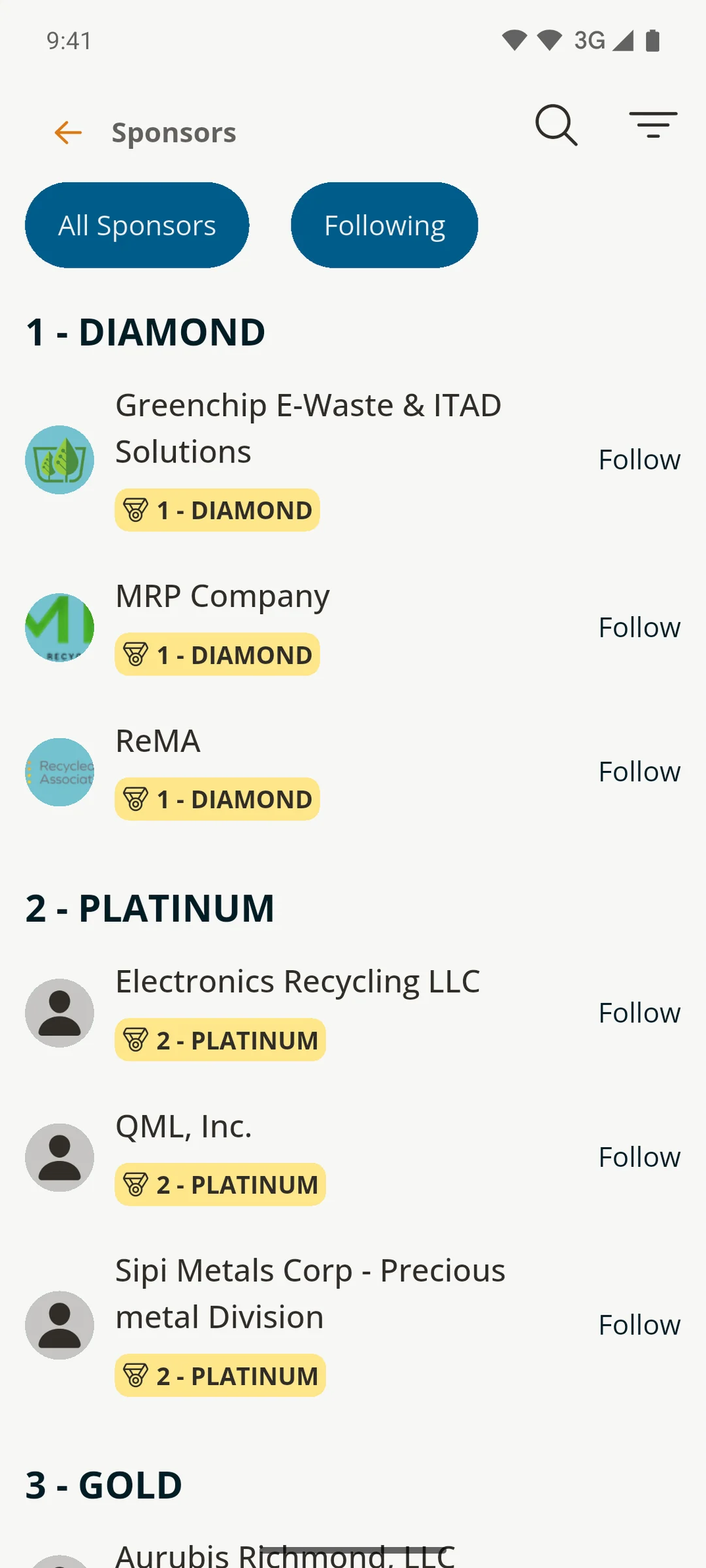
Listed by tier, Diamond first. Tap for a description and website.
Exhibitors
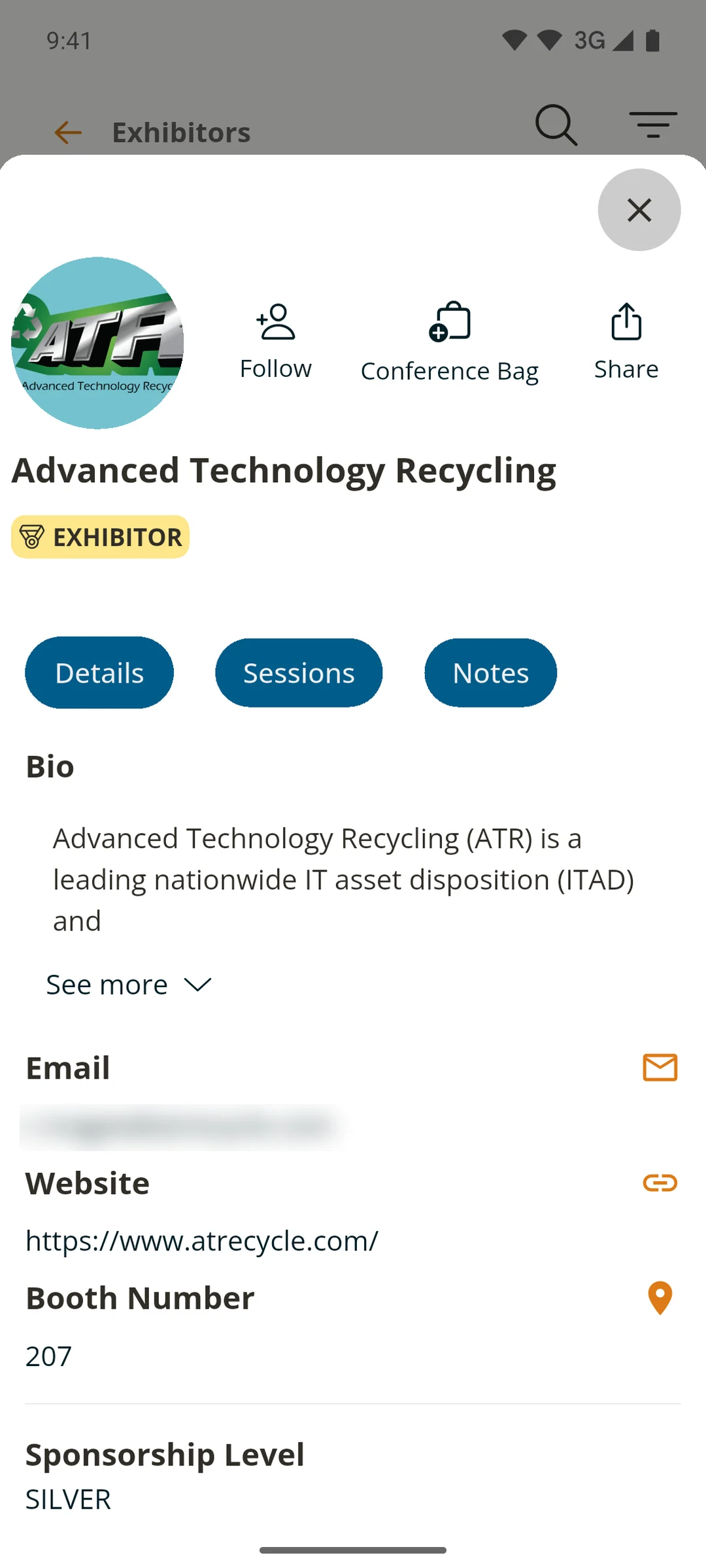
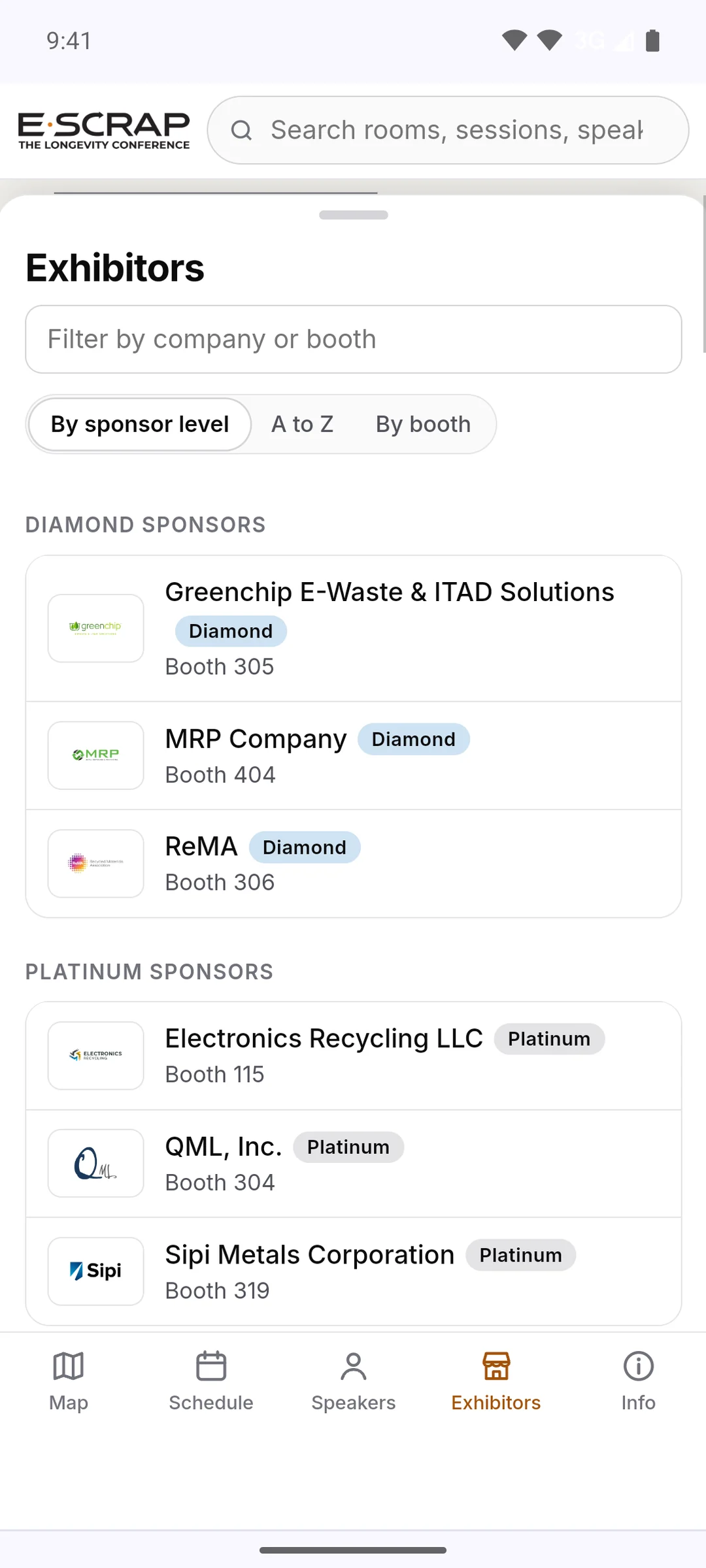
Every company in the hall with its booth number. Tap for details, Follow, or drop them in your Conference Bag to visit later.
Floor plan
The app has no floor plan of its own. Booth numbers on the exhibitor cards tell you where a stand is, and the venue map shows every booth (lesson 8).
Demo: speakers and exhibitors (18 seconds)
Speakers
A speaker's card
Sponsors by tier
An exhibitor's card
Lesson 06
Ask a question in a session
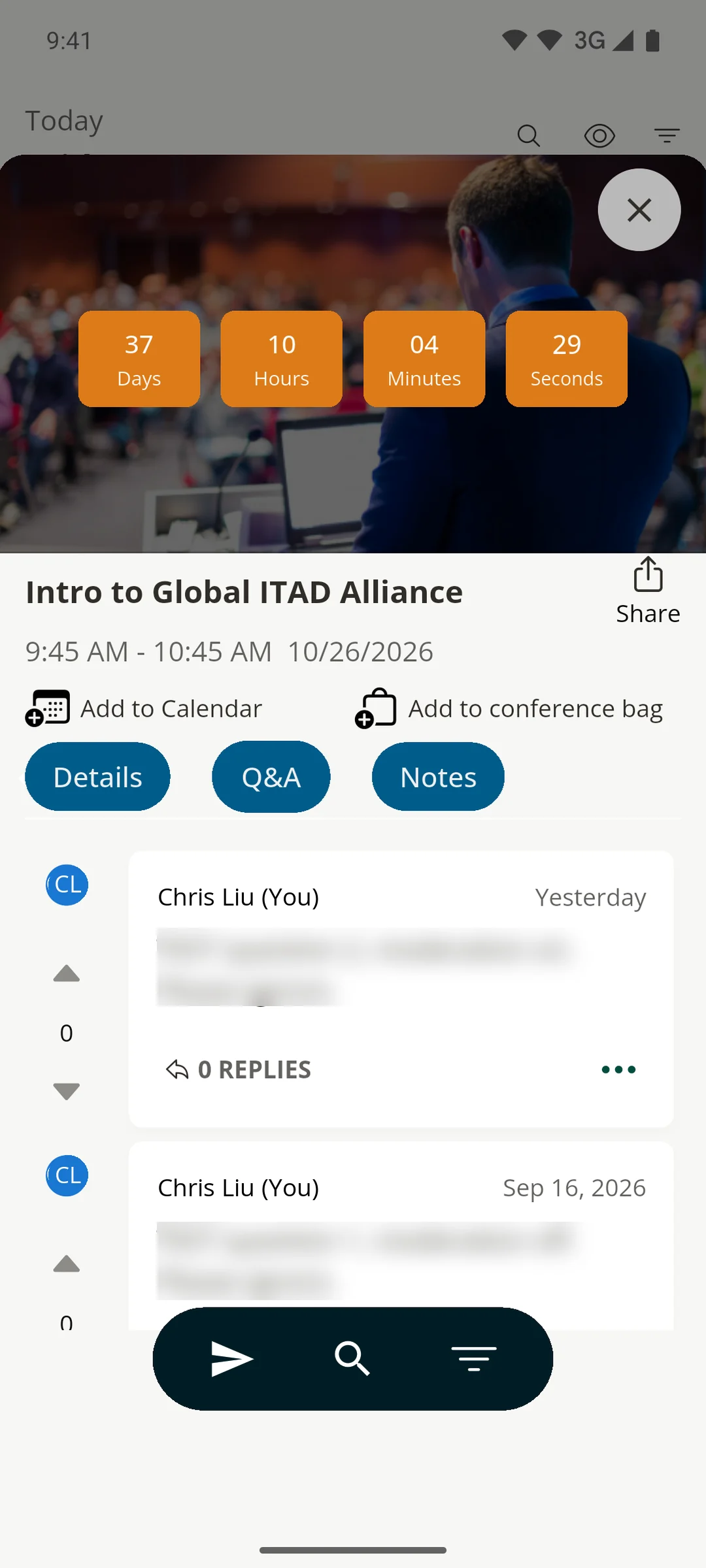
No need to wait for a microphone. Every session has a Q&A tab where you can post a question from your seat and vote for the ones you want answered.
Open the session from Schedule
Tap its name in the list for the day.
Tap Q&A
The blue chip next to Details. Questions other people have asked are listed here.
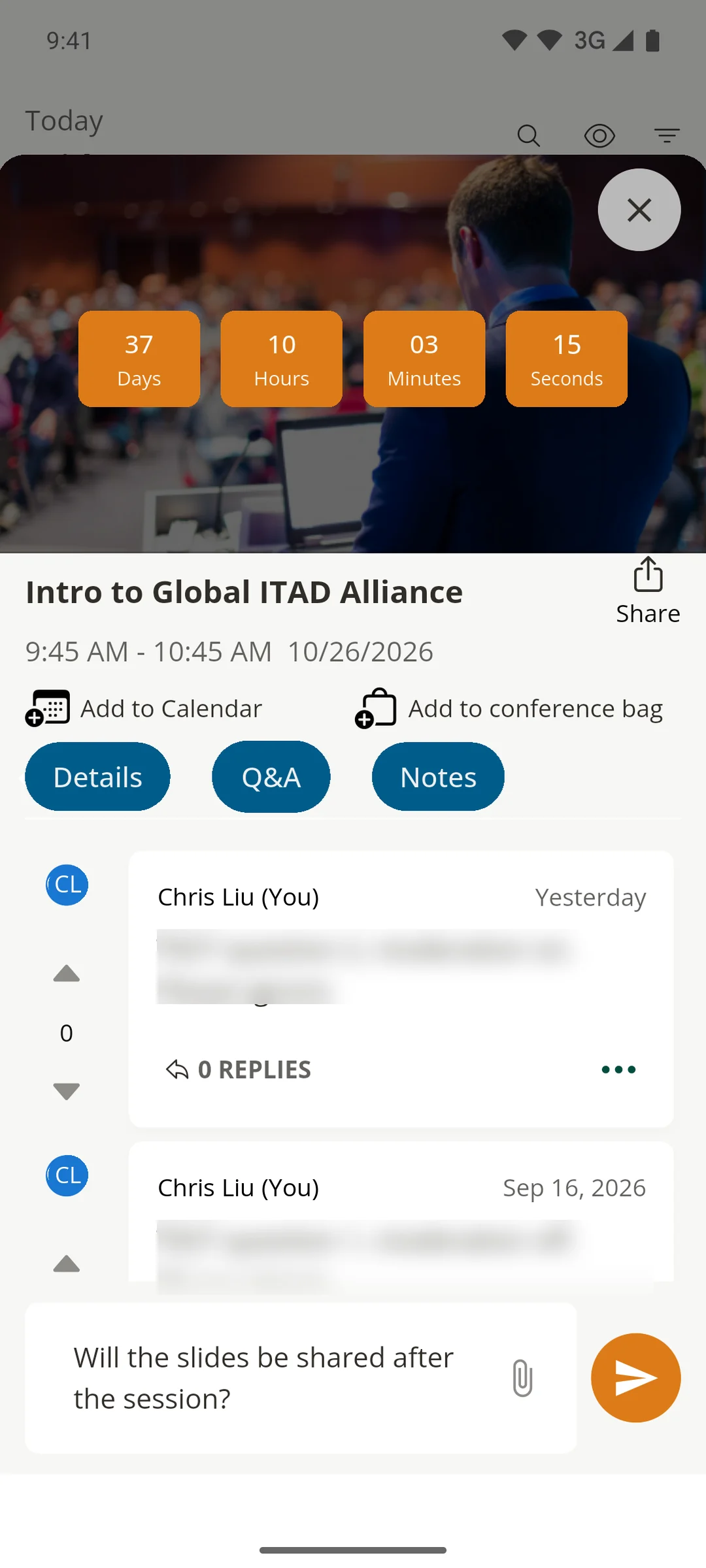
Tap the send icon, then type your question
The paper plane in the black bar opens the question box. Keep it to a sentence or two.
Tap the orange arrow to send
Your question joins the list. For some sessions a moderator looks at questions first, so yours may take a moment to appear.
Vote for the questions you want answered
The up arrow next to any question adds your vote. The most popular rise to the top for the moderator.
In the room
Look for the QR code on the screen at the front of the session. Scanning it with your phone camera opens the app so you can post straight away.
Demo: ask a question (15 seconds)
The Q&A chip
Questions and votes
Type, then the orange arrow
Lesson 07
Vote for the awards
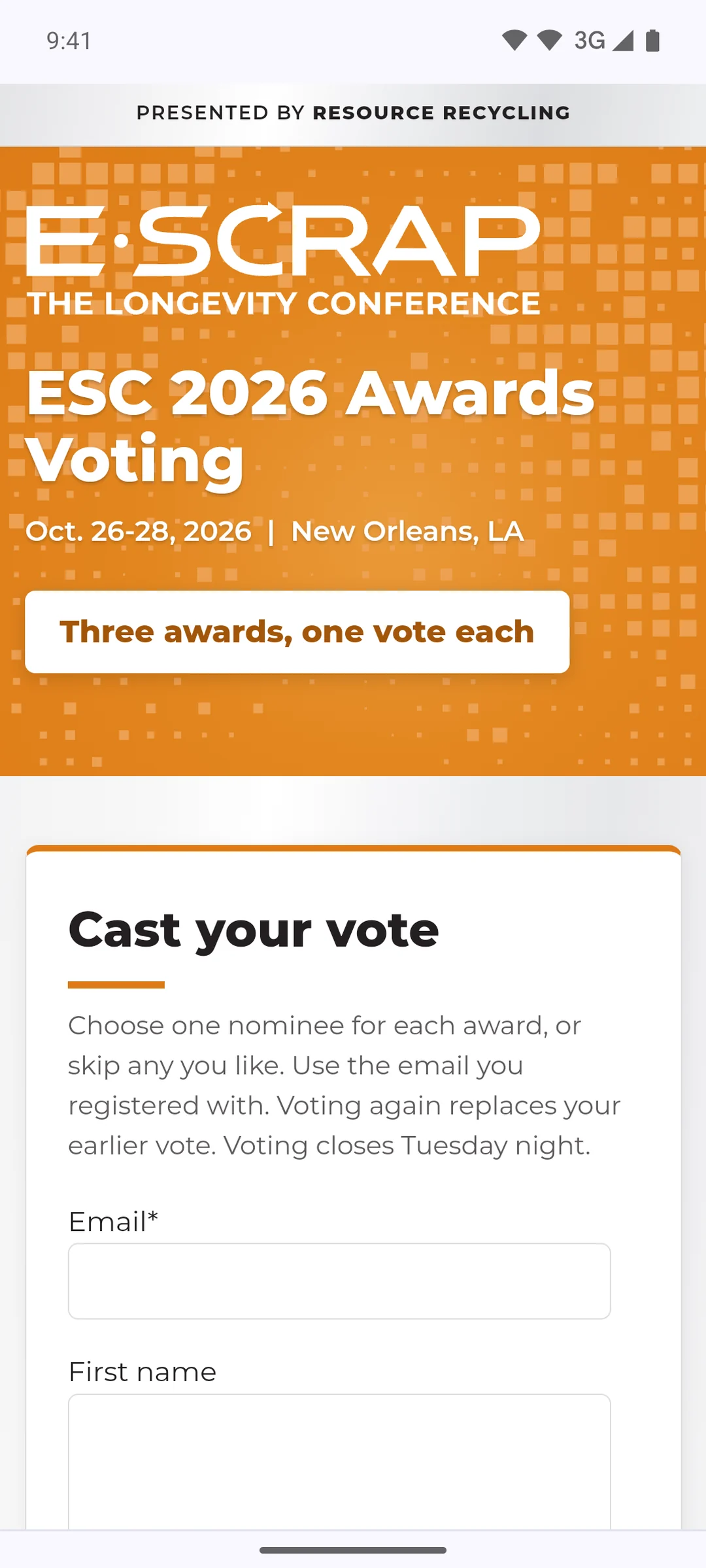
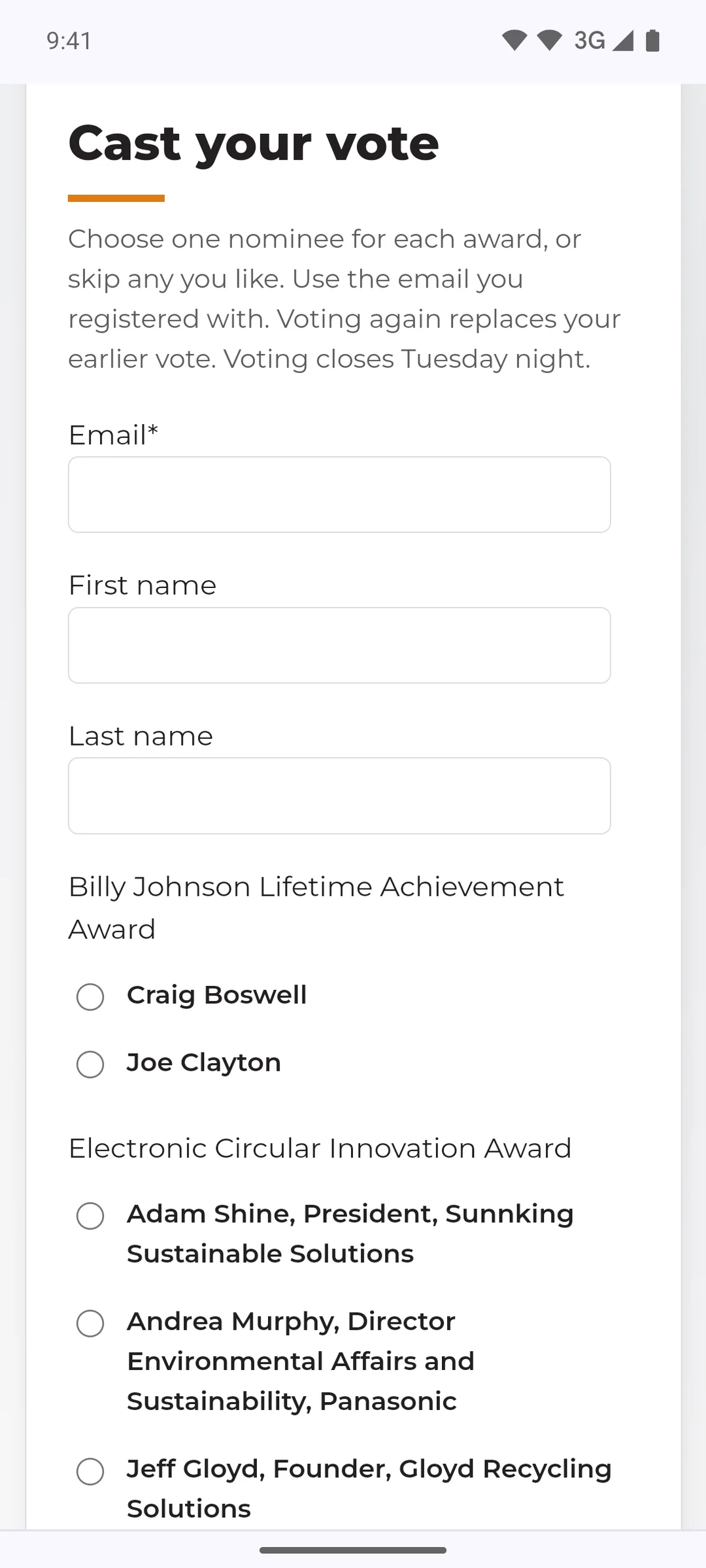
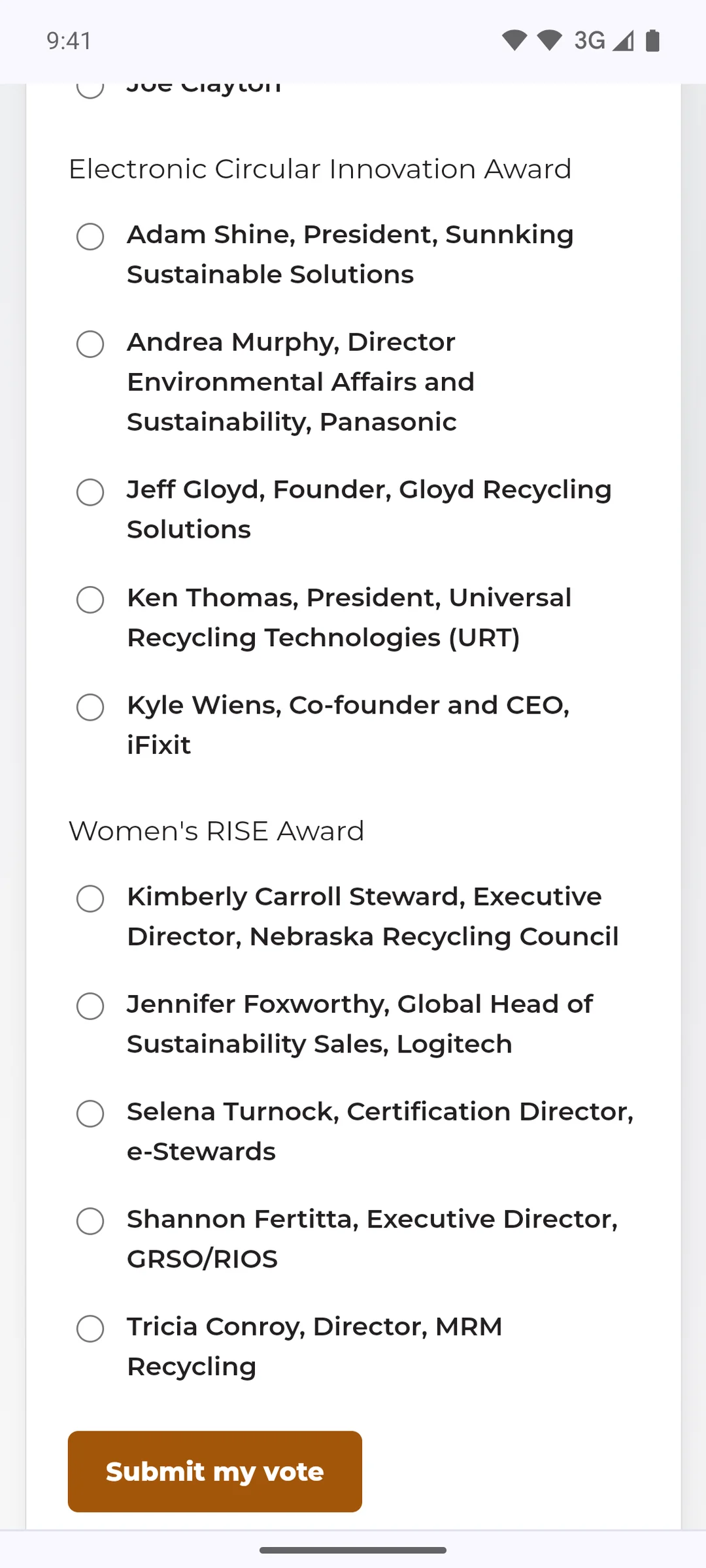
Three awards are decided by attendee vote: the Billy Johnson Lifetime Achievement Award, the Electronic Circular Innovation Award and the Women's RISE Award. It takes about a minute.
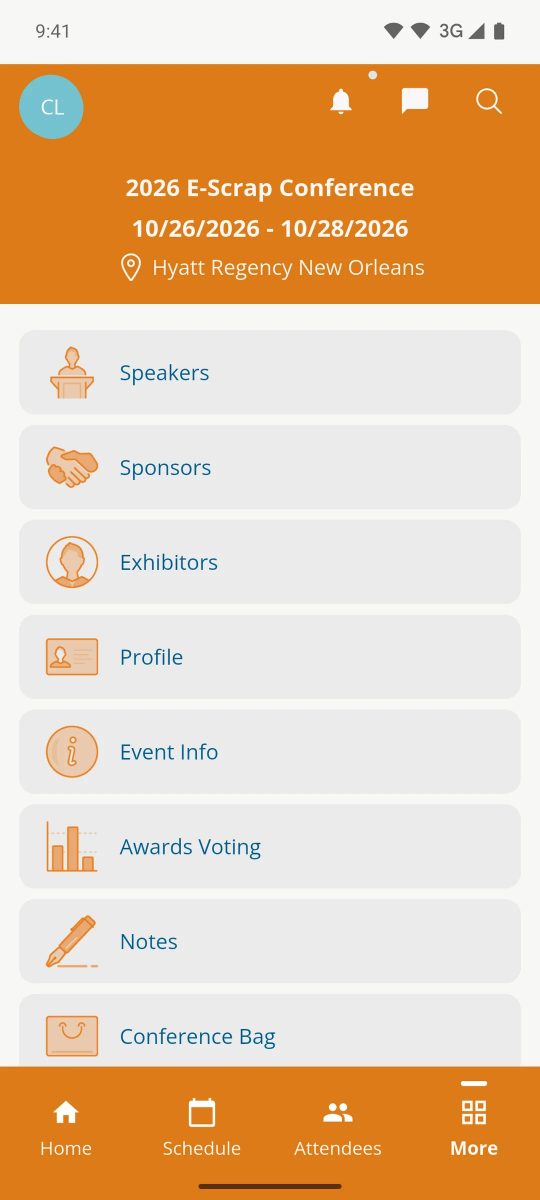
Tap More, then Awards Voting
It sits between Event Info and Notes. The voting page opens in your phone's web browser, not inside the app.
Type the email you registered with
Use the same address you signed in with. First and last name are optional.
Pick one nominee per award
Each award has its own list. Tap one name, or skip an award you do not want to vote on.
Tap Submit my vote
A thank-you message tells you your vote is in.
Changed your mind?
Open Awards Voting again and submit with the same email. Your new vote replaces the earlier one.
Good to know
Voting closes Tuesday night.
If you do not see Awards Voting under More, close the app fully and open it again. If it is still missing, sign out and sign in once more.
Demo: vote for the awards (13 seconds)
More, then Awards Voting
The voting page
Your email, then the nominees
One nominee per award, then Submit
Lesson 08
Find rooms and booths on the map
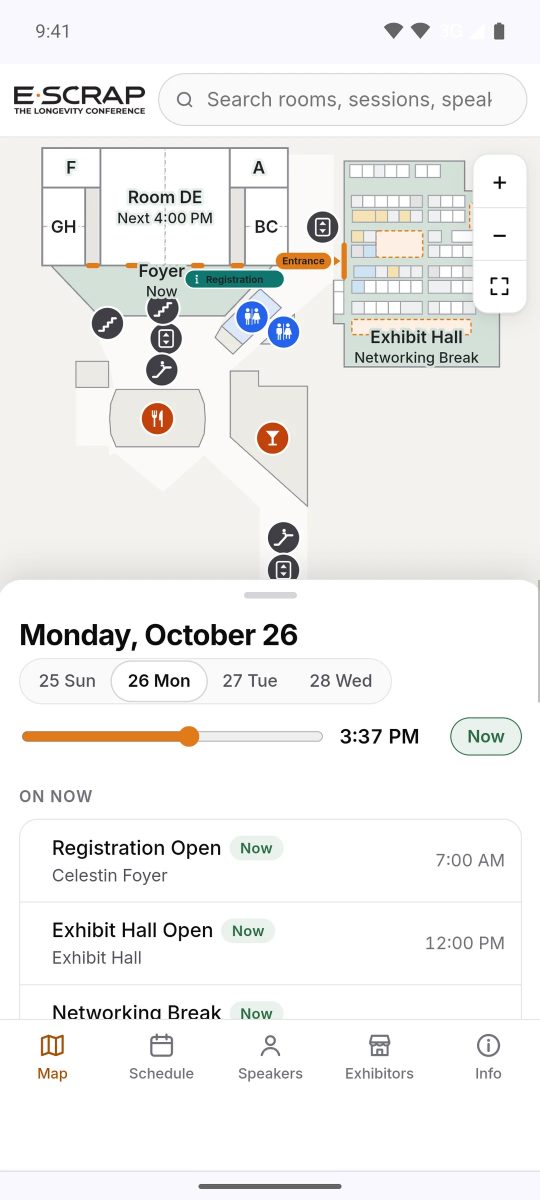
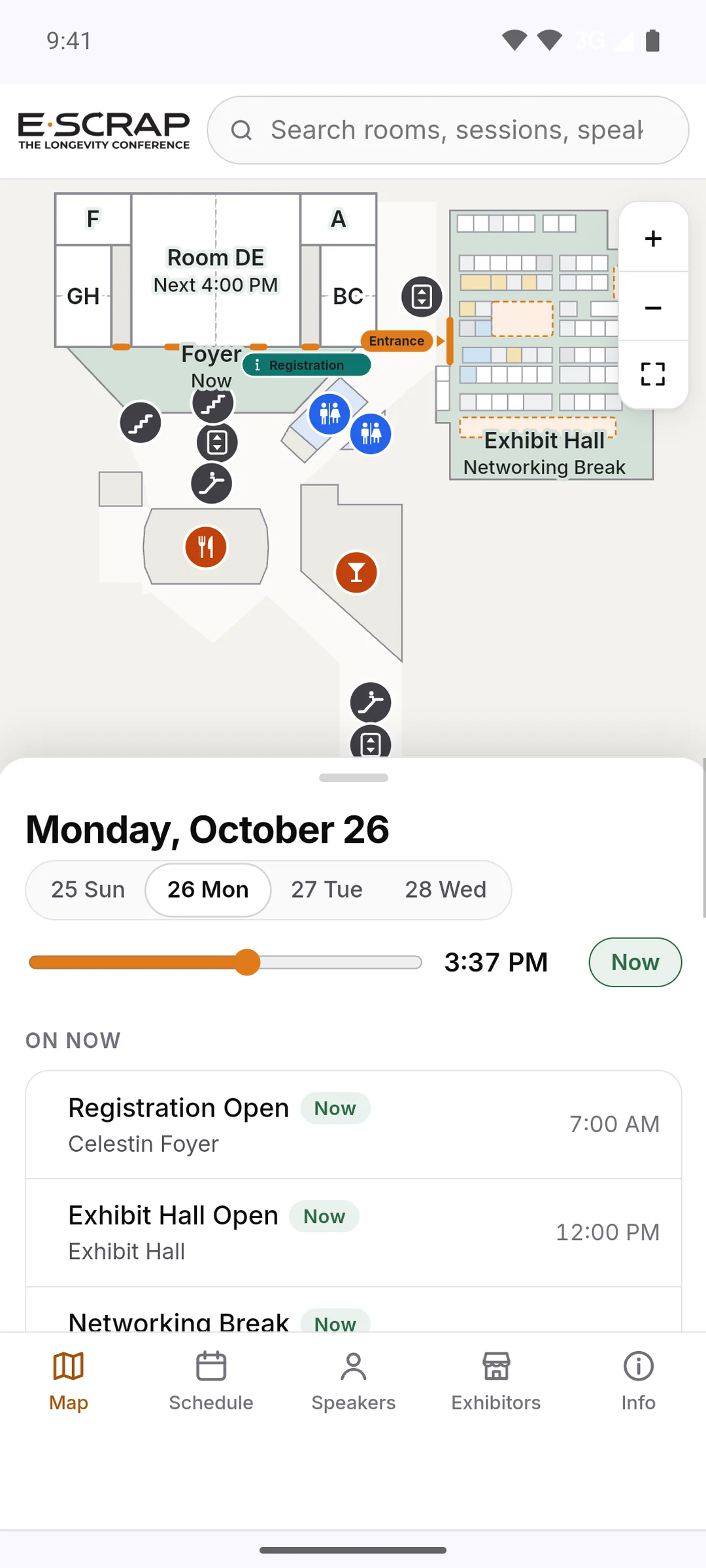
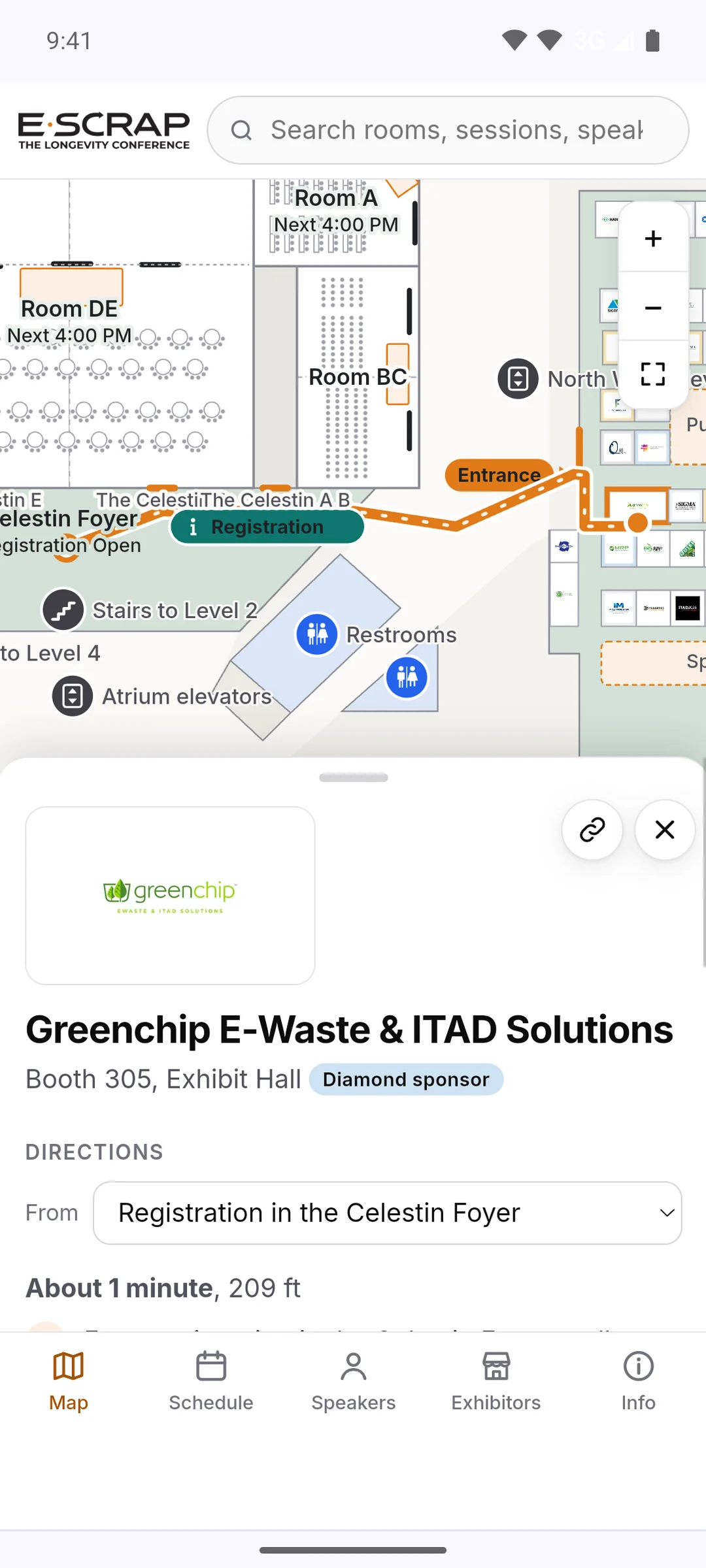
The venue map shows every session in its room, every booth in the Exhibit Hall, the restrooms and the elevators, and walks you from where you are to where you are going.
Tap More, then a map button
There are two: E-Scrap Conference Map for the whole venue and E Scrap Exhibit Hall Map for the hall. The map opens in your phone's web browser.
Search for what you need
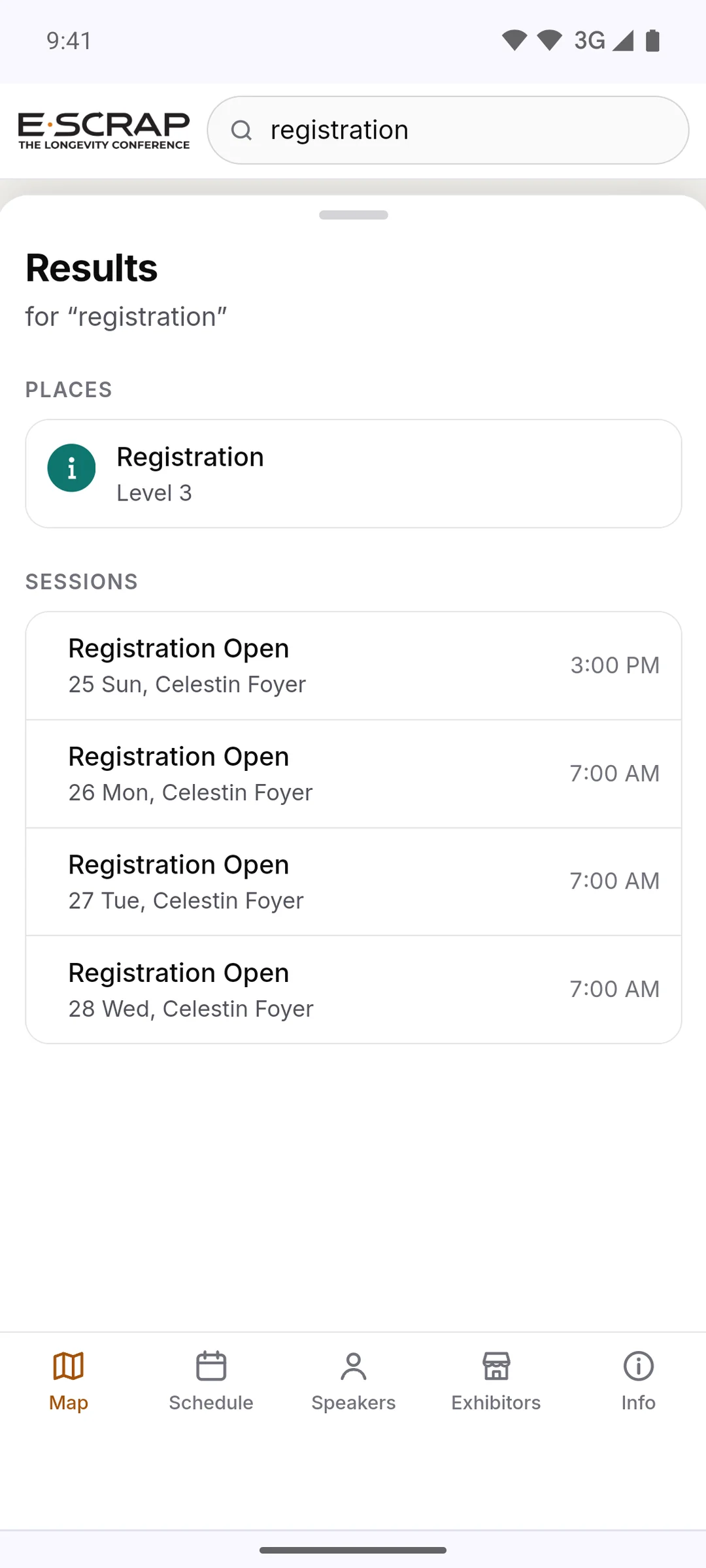
Tap the search box at the top and type a room, a session, a company or a speaker. Results are grouped as places, sessions, speakers and exhibitors. Tap one to see it on the map.
Tap a booth or a room
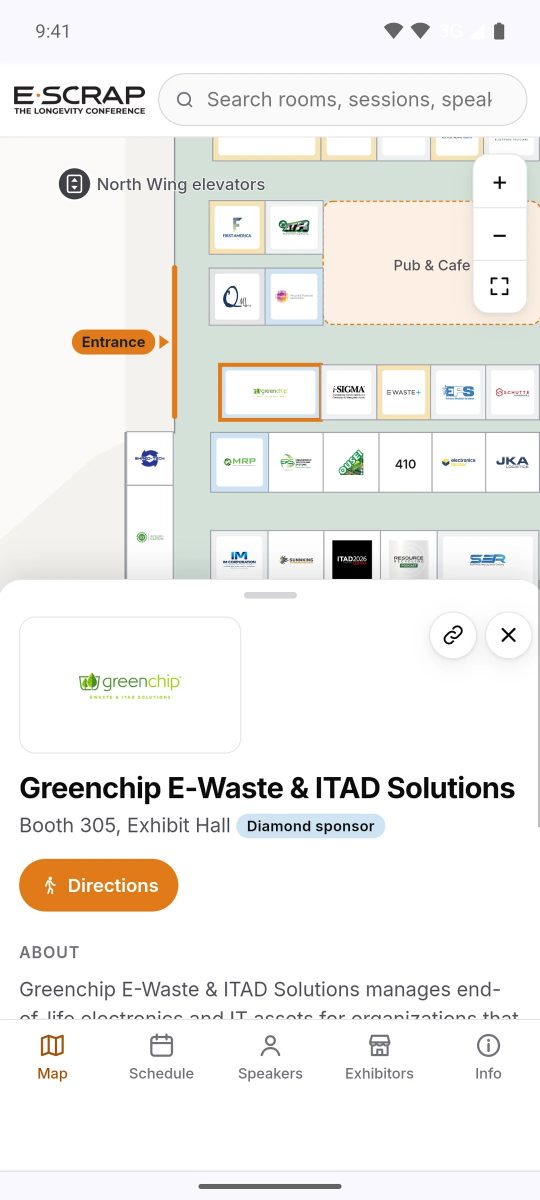
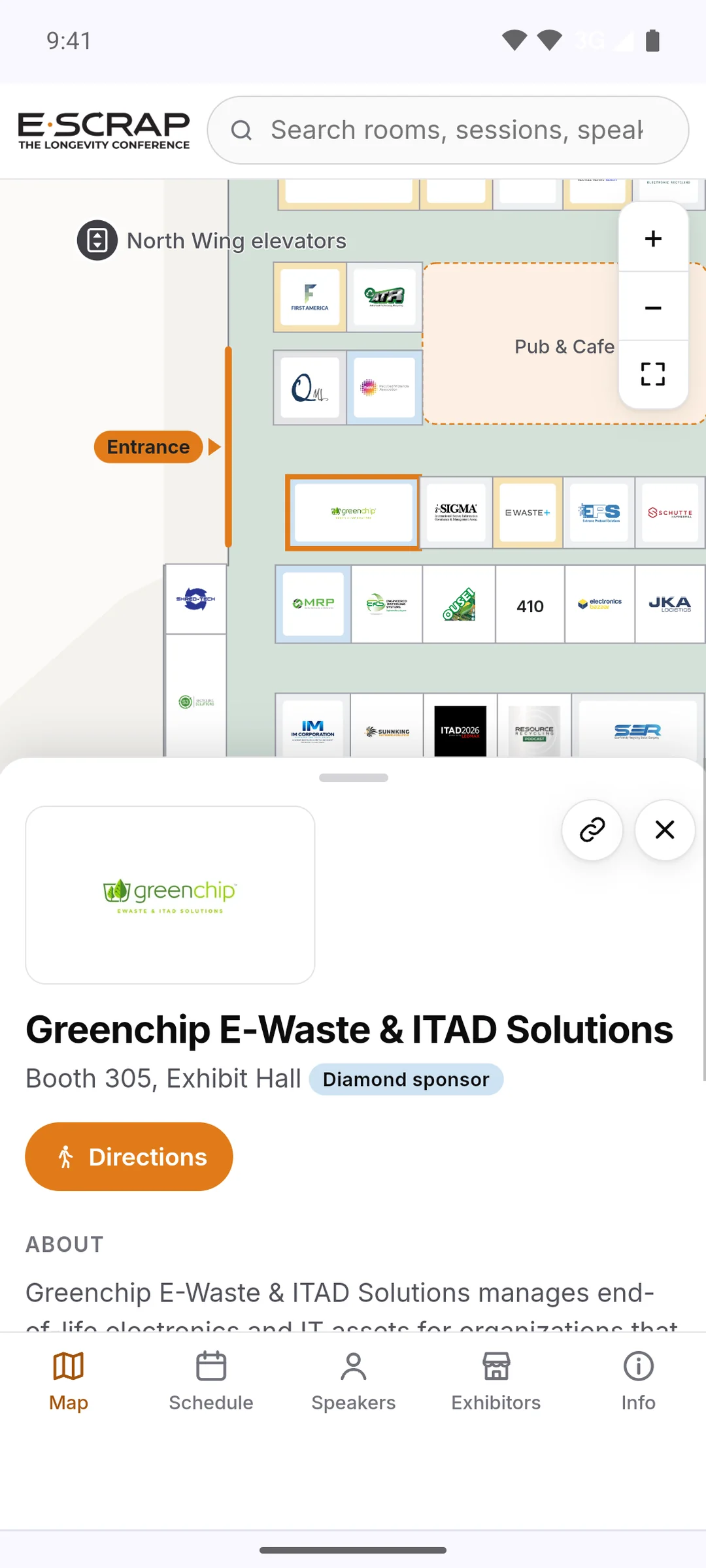
A card opens with its name, its booth number or sessions, and a Directions button.
Tell it where you are
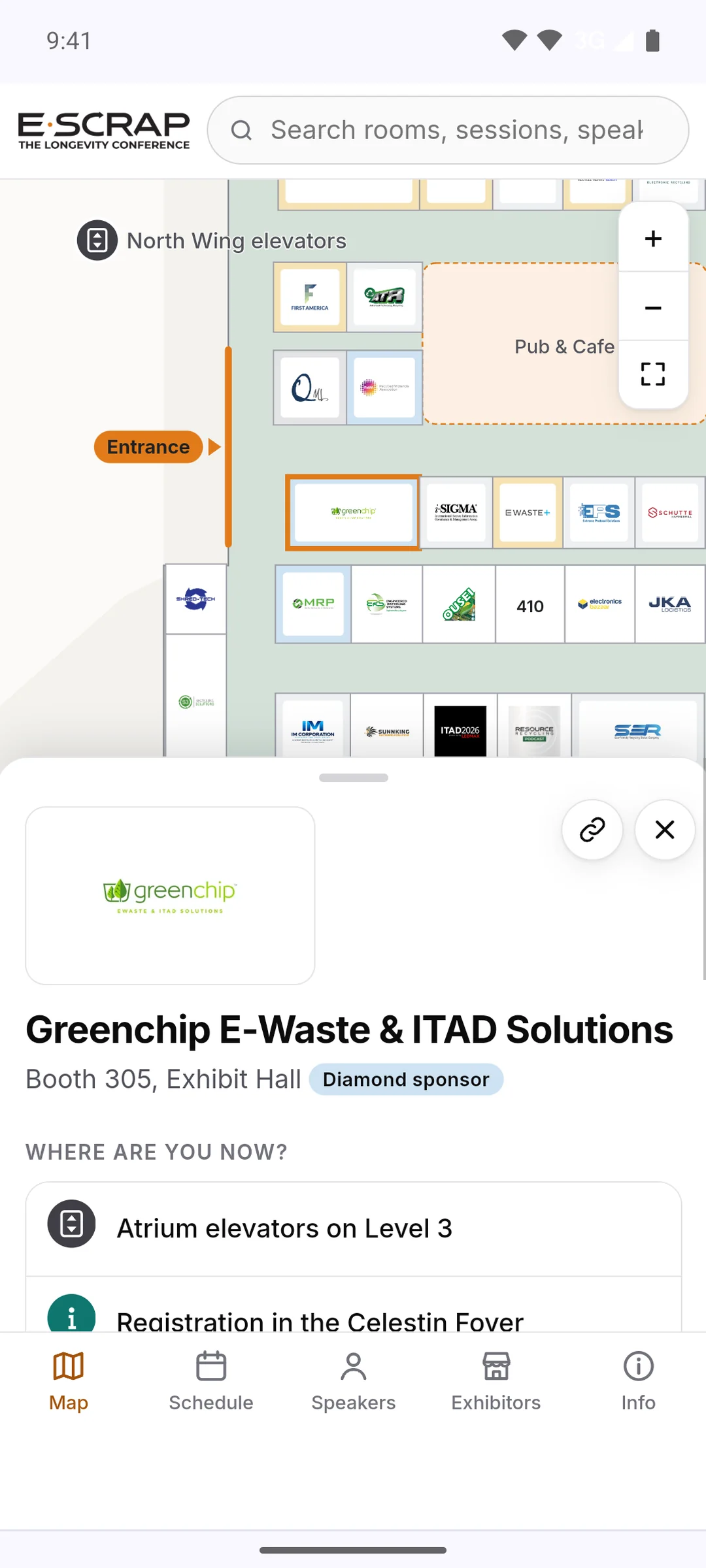
After you tap Directions, pick the closest starting point in the list, such as Registration or the Atrium elevators.
Follow the orange route
The map draws the walk and shows the time and distance. Pinch to zoom, or use the plus and minus buttons.
Use the tabs along the bottom
Schedule, Speakers, Exhibitors and Info list the same things, and every item has its own place on the map.
Get back to the app
Swipe back or use your phone's back button to return to Resource Recycling Events. The app stays open where you left it.
Time of day
The map opens at the current time and marks what is on now. The day buttons and the time slider show any other moment of the show.
If you do not see the map buttons
Close the app fully and open it again. If they are still missing, sign out and sign in once more.
Demo: search the map (10 seconds)
Demo: get directions to a booth (13 seconds)
The map
Search results
A booth and its Directions button
Where are you now?
The route
The Exhibitors tab
Part 3
People
Finding who you want to meet, and arranging it.
Lesson 09
Find people and message them
Attendees is the full list of who is coming. Search for a name, open their card, and follow them or send a message. Email addresses are never shown to anyone.
Tap Attendees, then the magnifier
The list is alphabetical by surname if you would rather browse.
Type a name and press the search key
Results appear when you press the search or enter key on your keyboard, not while you type. Search by first name or surname, one at a time.
Tap the person
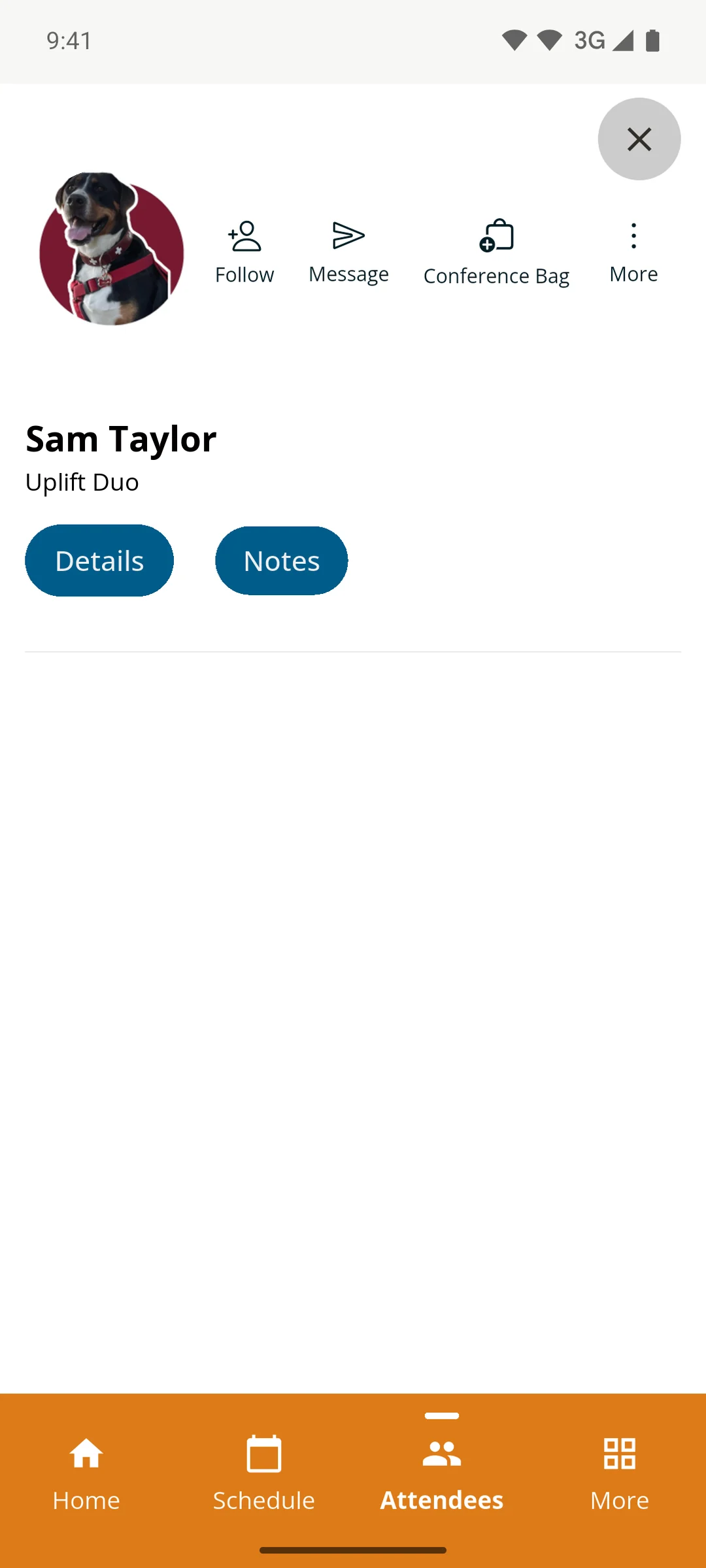
Their card slides up with their title and company, and any bio they have added under Details.
Follow, or Message
Follow bookmarks them: the Following filter on Attendees is your shortlist. Message opens a private chat. Notes on their card are private reminders only you can see.
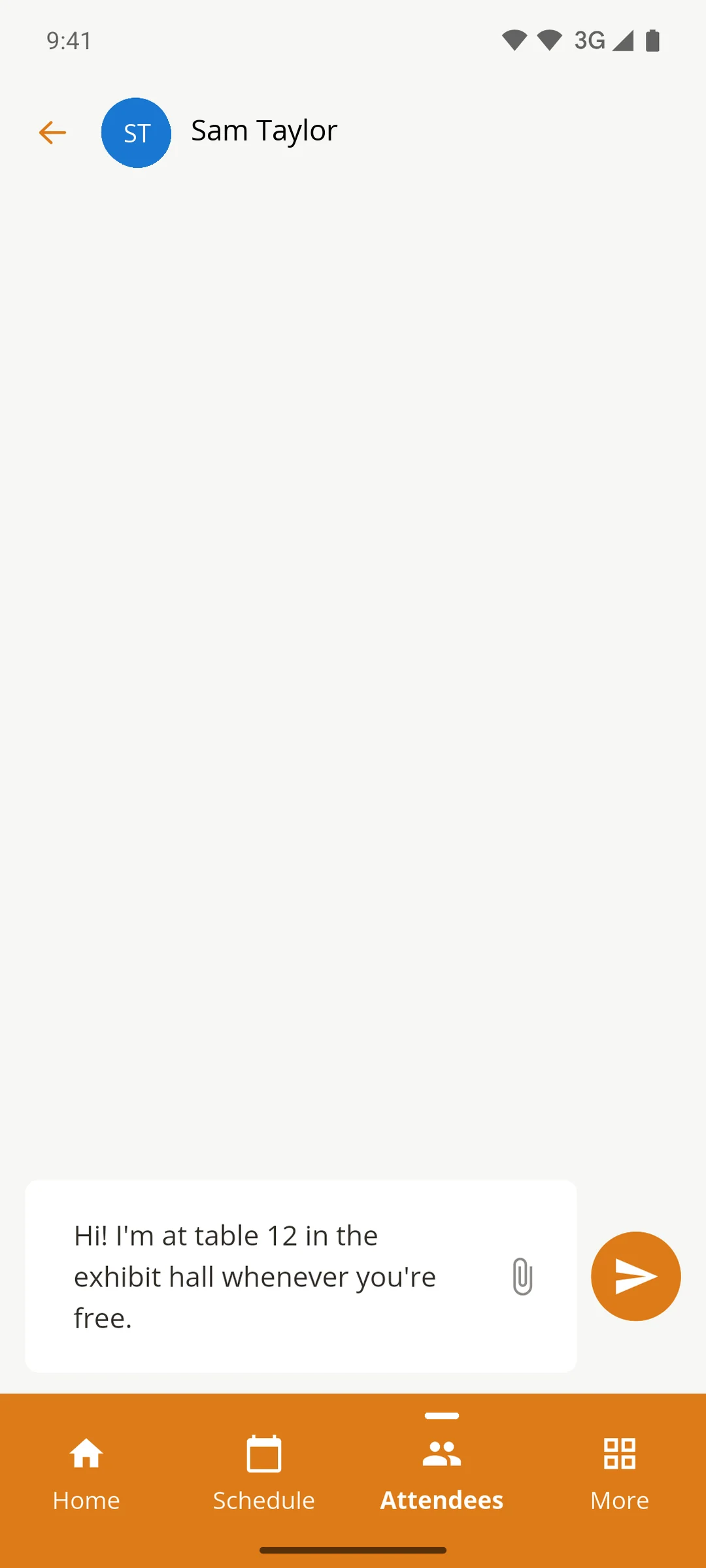
Write and send
Type in the box at the bottom and tap the orange arrow. Their reply arrives as a notification and under the speech bubble on Home.
Good to know
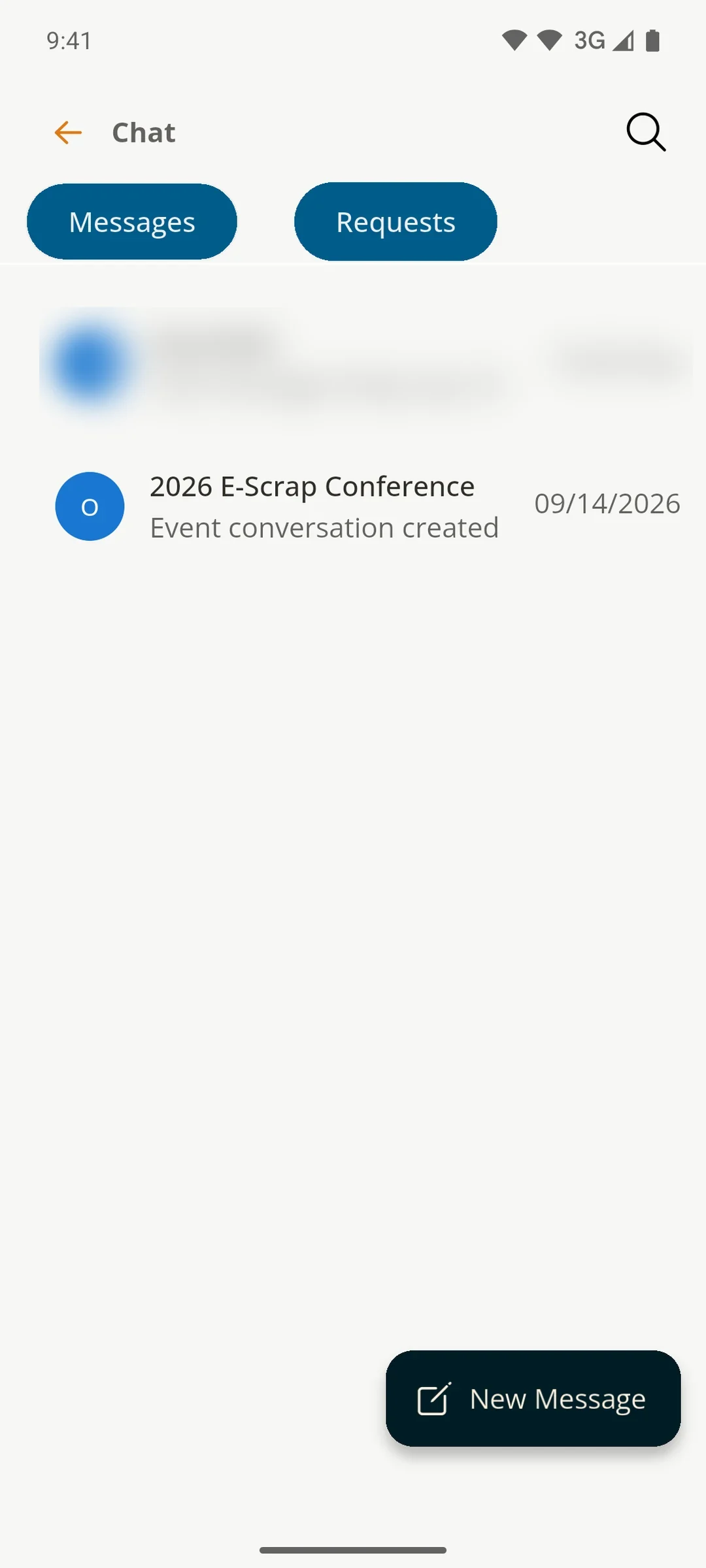
The speech bubble on Home lists all your conversations. Messages from people you have not spoken with before wait under Requests.
To make sure you hear about new messages, switch on Chat notifications under Profile, then Notification Preferences (lesson 13).
Prefer not to be messaged? Profile, then Permissions, has a single switch for it.
The three dots on a person's card do nothing useful yet. To arrange a meeting, use the next lesson.
Demo: find someone and send a message (16 seconds)
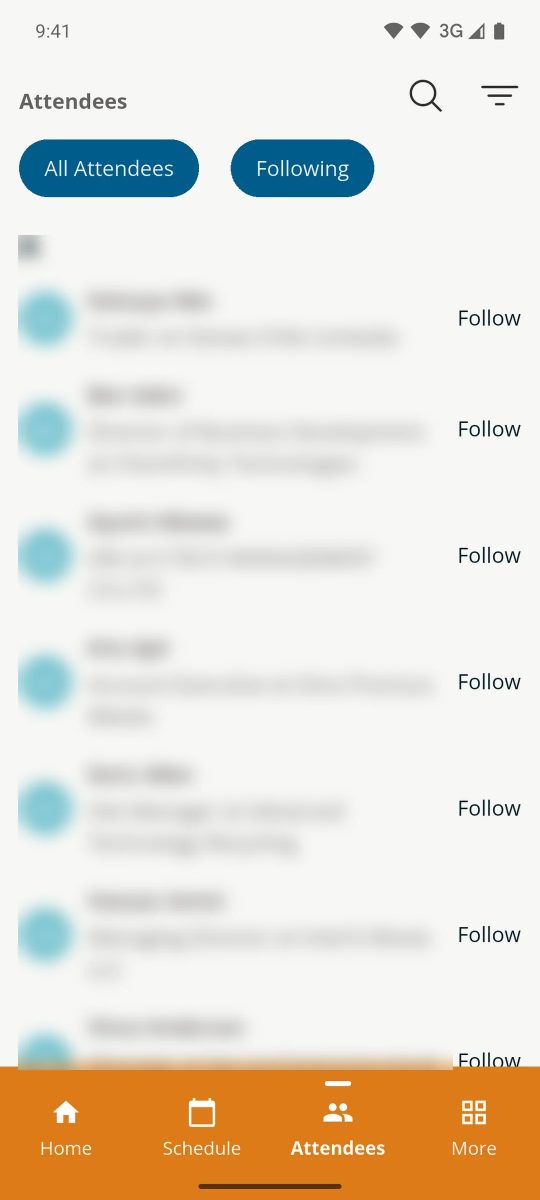
Attendees (names blurred here)
A person's card
Type, then the orange arrow
All your conversations
Lesson 10
Request a one-to-one meeting
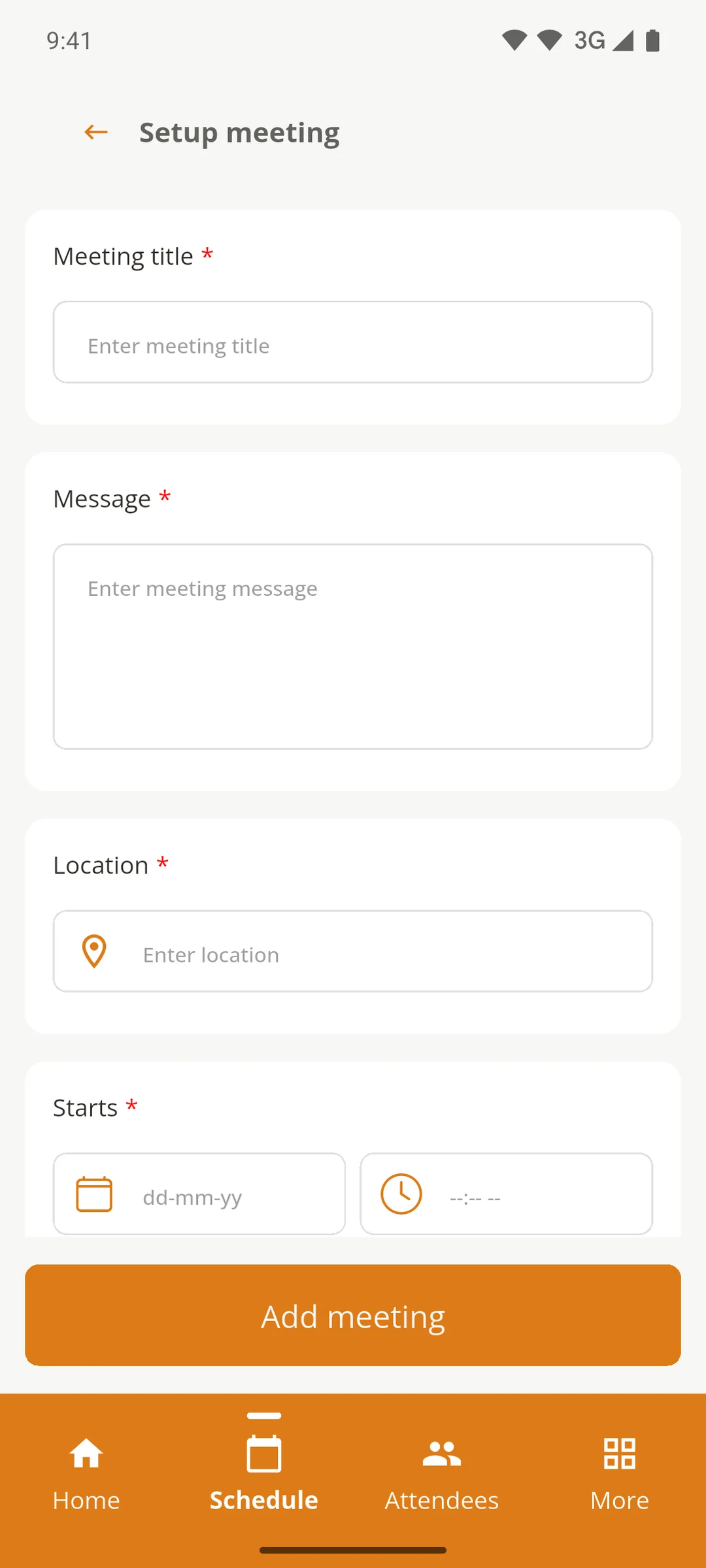
The feature most people ask about. Pick a time, name a spot such as one of the numbered meeting tables in the exhibit hall, choose who you want to see, and send. They get an email and an alert in the app.
Tap Schedule, then the black Meeting button
It floats at the bottom right of the Schedule screen. This is the only place to start a meeting request.
Give it a title and a short message
Say what you would like to talk about. Both boxes are required.
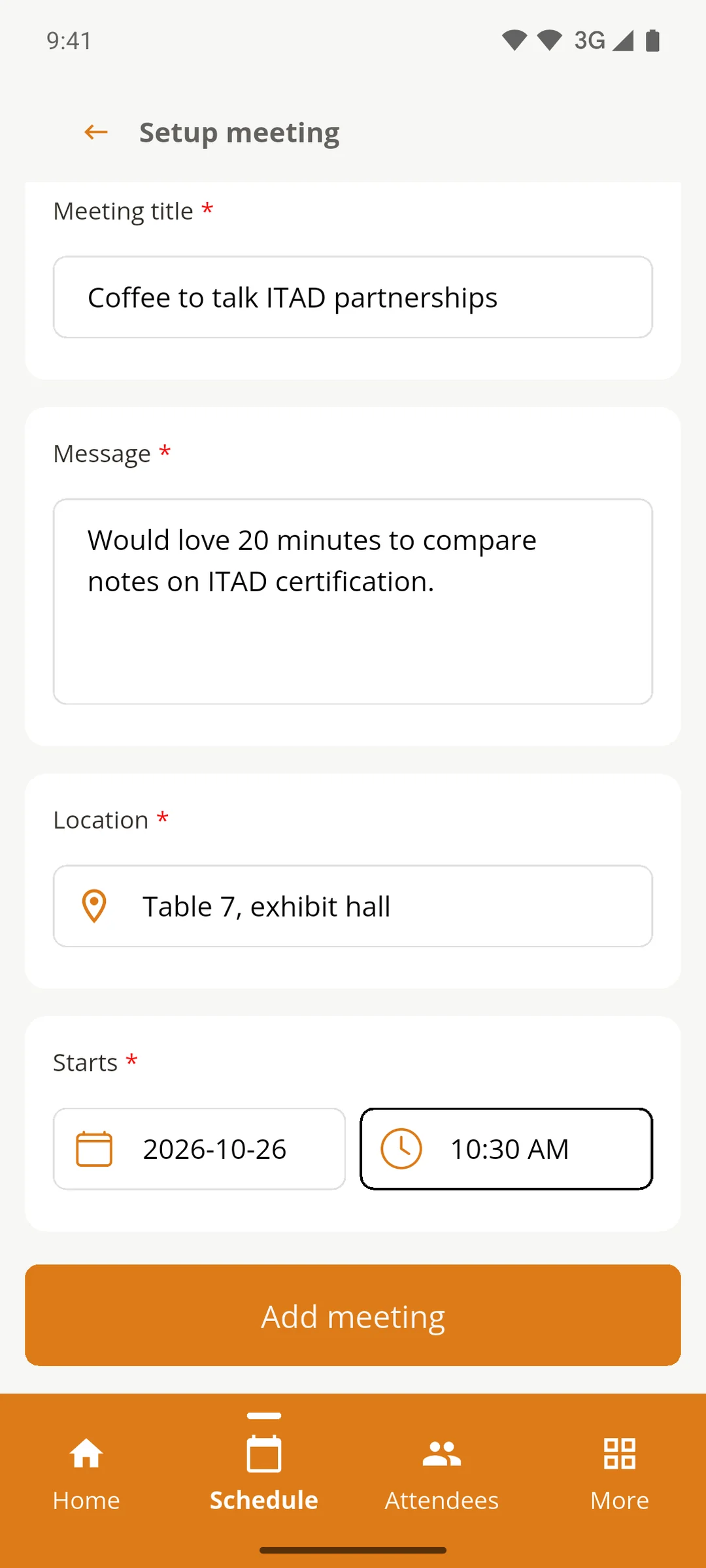
Type where to meet
The exhibit hall has numbered meeting tables. Something like Table 7, exhibit hall is perfect. A booth number works too.
Set Starts, and check Ends
Tap the date box, pick the day, then OK. Tap the time box, pick the hour and minute, then OK. Ends fills in 30 minutes later; change it if you need longer.
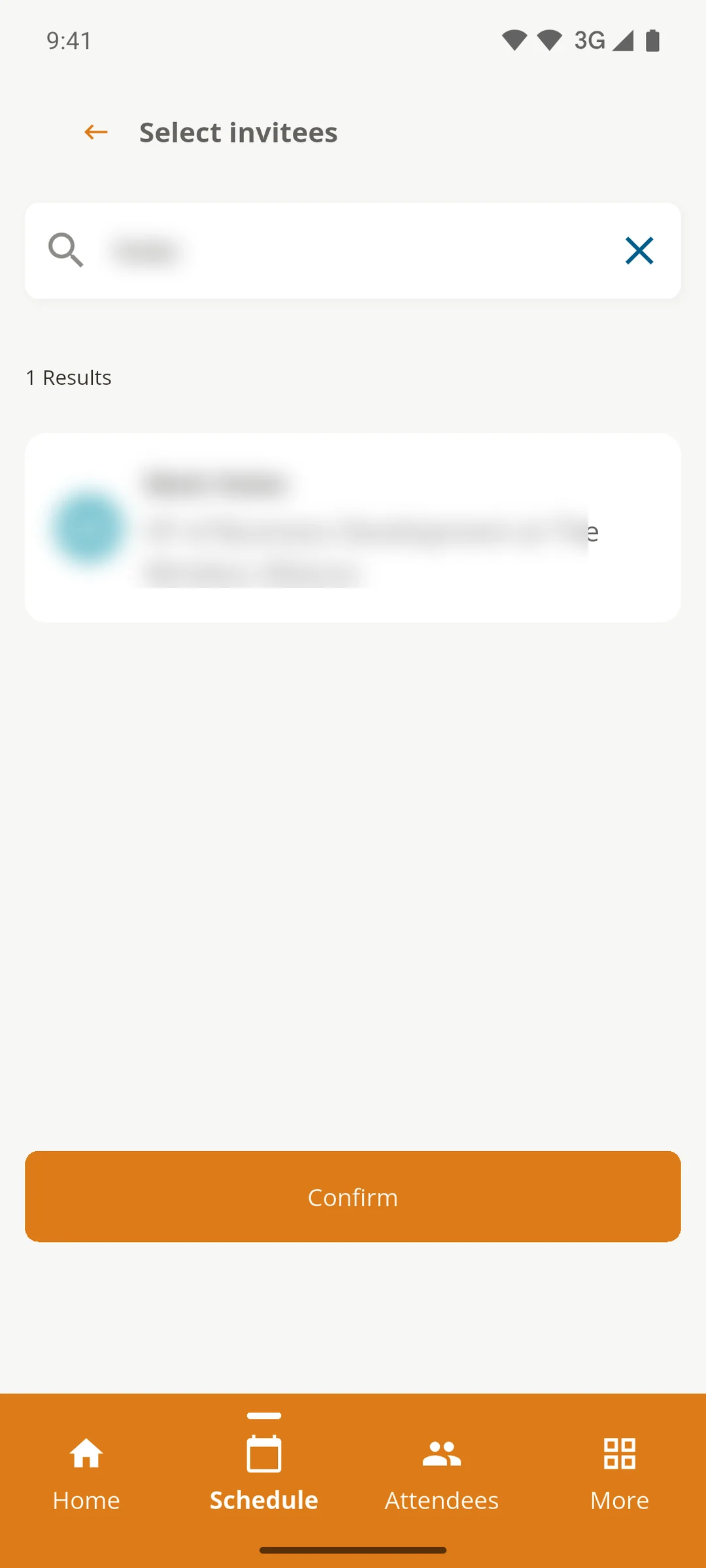
Select invitees
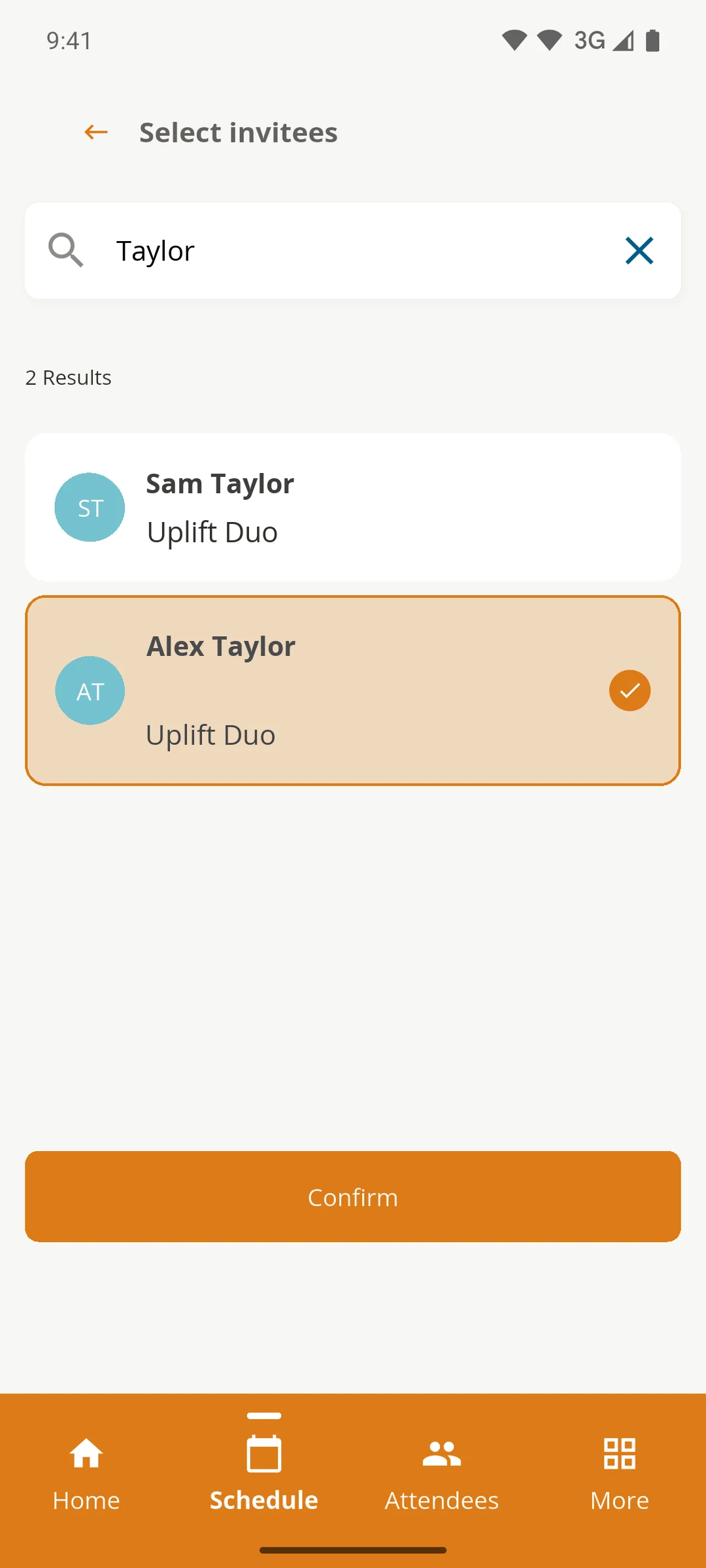
Scroll down and tap Select invitees. Type their name in the search box and press the search key on your keyboard, tap their name so it gets a tick, then tap Confirm. You can add more than one person.
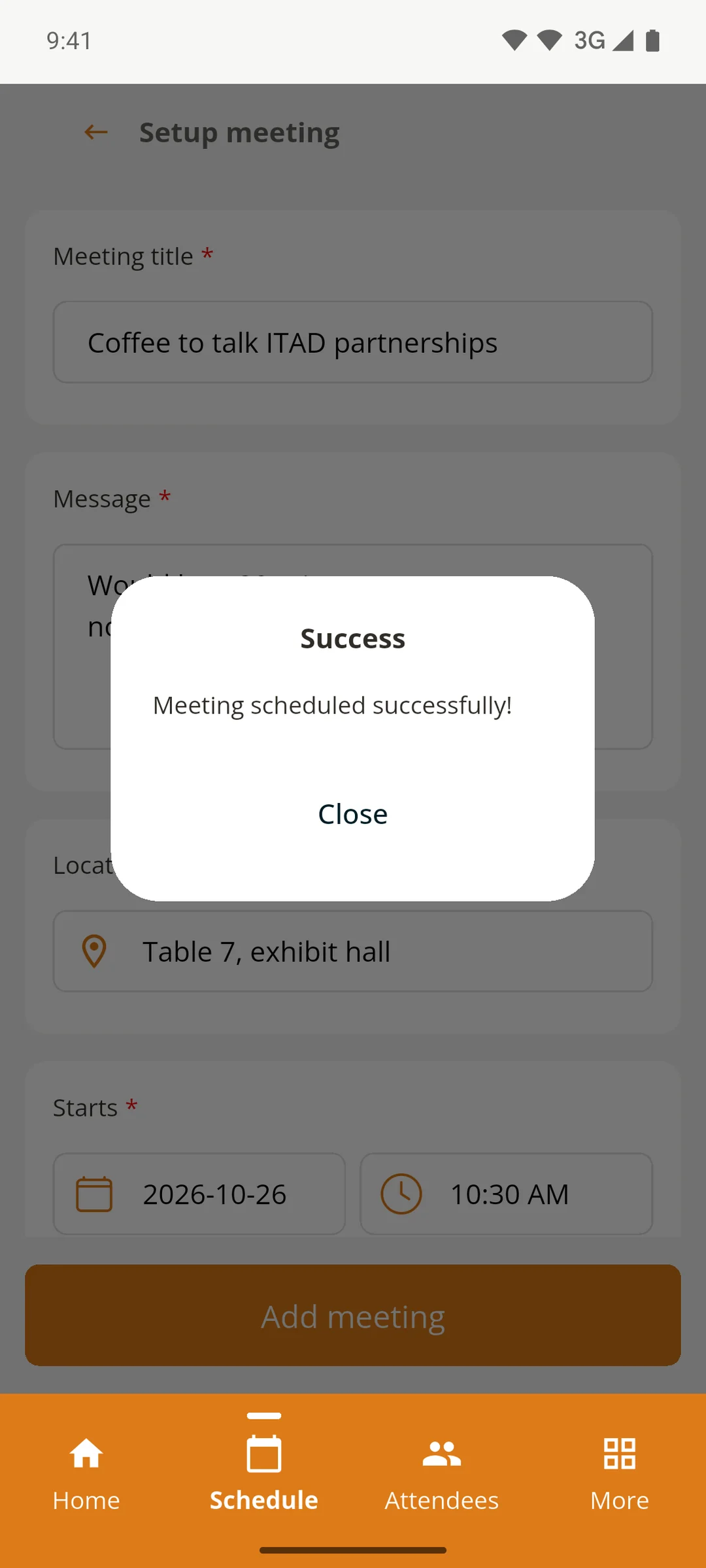
Tap Add meeting
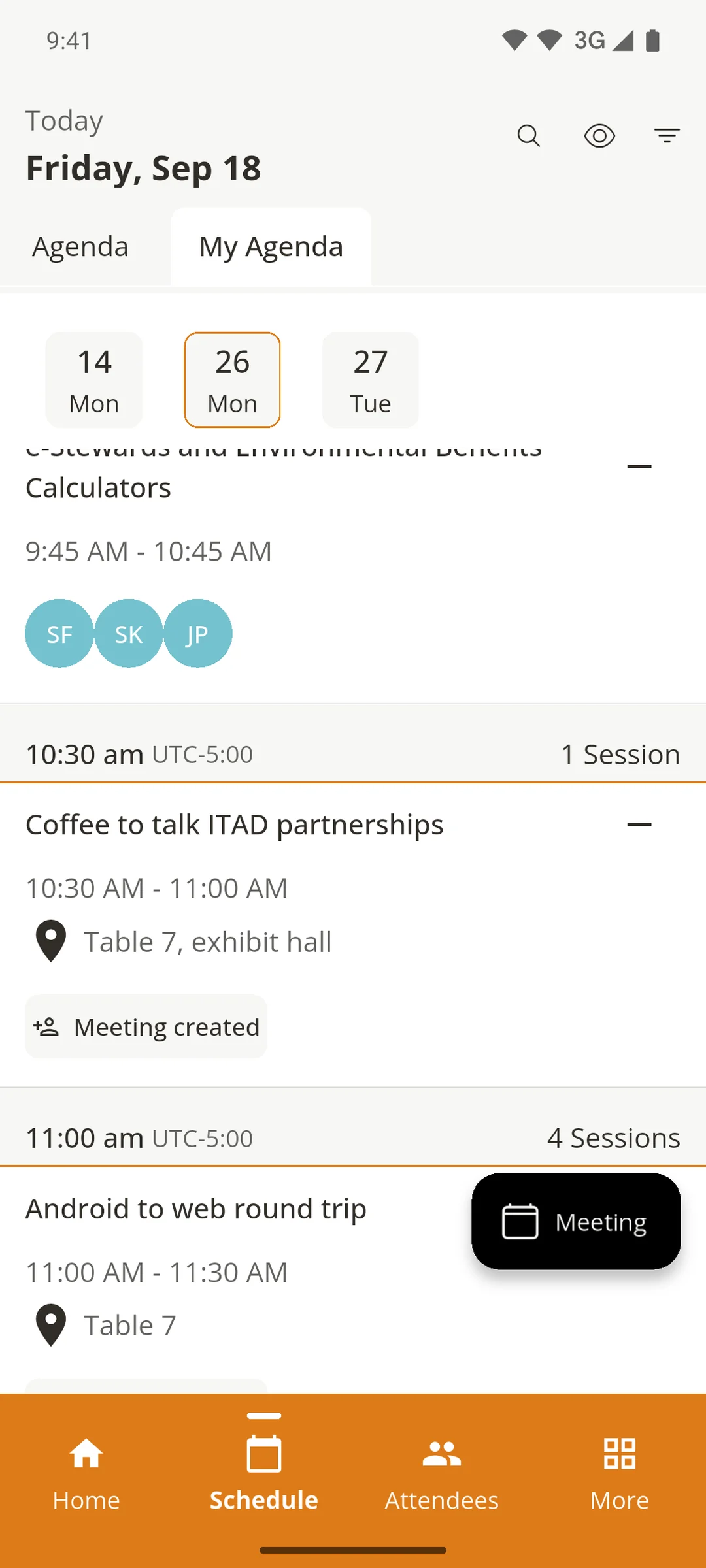
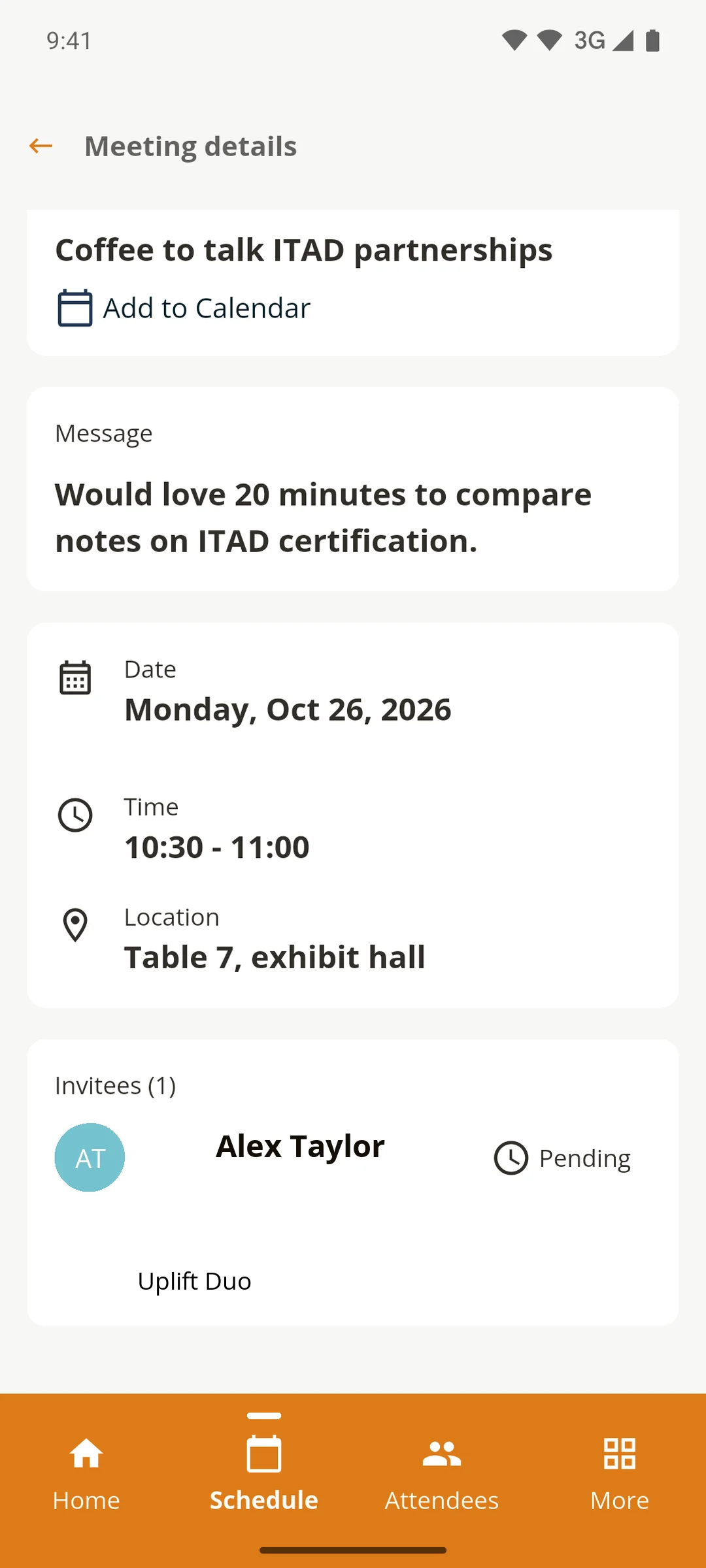
Meeting scheduled successfully! means it is sent. The meeting now shows in your My Agenda, and its details list each invitee as Pending until they answer.
Someone sent you one?
You get an email and an alert under the bell on Home, saying who requested it. Open it to see the time and place and respond. Accepted meetings appear in your My Agenda.
Tables
Naming a table sets a meeting point, it does not reserve it. If someone is already there, take the next open one and send your guest a quick message with the new number.
Two things to know before you send
A sent request cannot be edited or canceled in the app. If plans change, message the person and send a fresh request.
The time picker uses your phone's clock. The app then shows the meeting in New Orleans time. If your phone is still on home time when you send, open the meeting in My Agenda afterward to see the time your guest will see, and adjust with a new request if it is off.
Demo: the whole meeting request, start to finish (35 seconds)
The form
Filled in, with a start time
Type a name, press the search key
Tick the person, then Confirm
Sent
It shows in My Agenda
Pending until they answer
Part 4
Your things
Notes, the conference bag, your profile, your alerts and your QR code.
Lesson 11
Notes and your conference bag
Two small tools that pay off after the show: private notes on anything, and a bag to collect what you want to come back to.
Notes
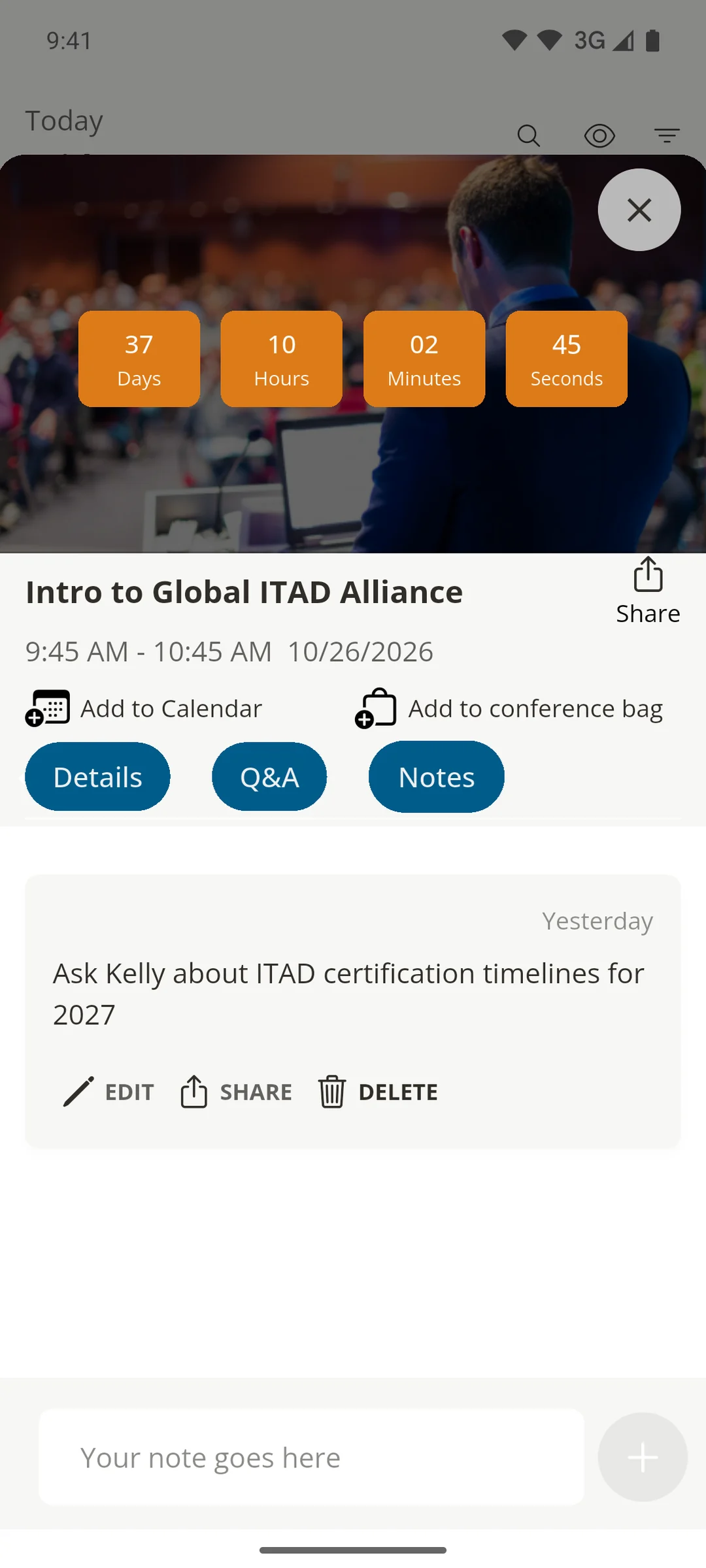
Sessions, people, speakers and exhibitors all have a Notes tab. Tap Add Note, type, and it saves to that item. More, then Notes, gathers every note in one place, and Send email posts the lot to your inbox.
Conference bag
Tap Add to conference bag on a session, or the bag icon on a person or exhibitor. More, then Conference Bag, shows everything you collected, sorted into Schedule, Attendees, Exhibitors and Speakers.
Add to Calendar
On any session, or on Event Info for the whole conference, drops the dates into your phone's own calendar.
Demo: notes and the conference bag (15 seconds)
A note saved to a session
The bag icon on an exhibitor
Both live under More
Lesson 12
Your profile
Tap your initials at the top left of Home. A photo and a line about what you do make it much easier for the right people to find you.
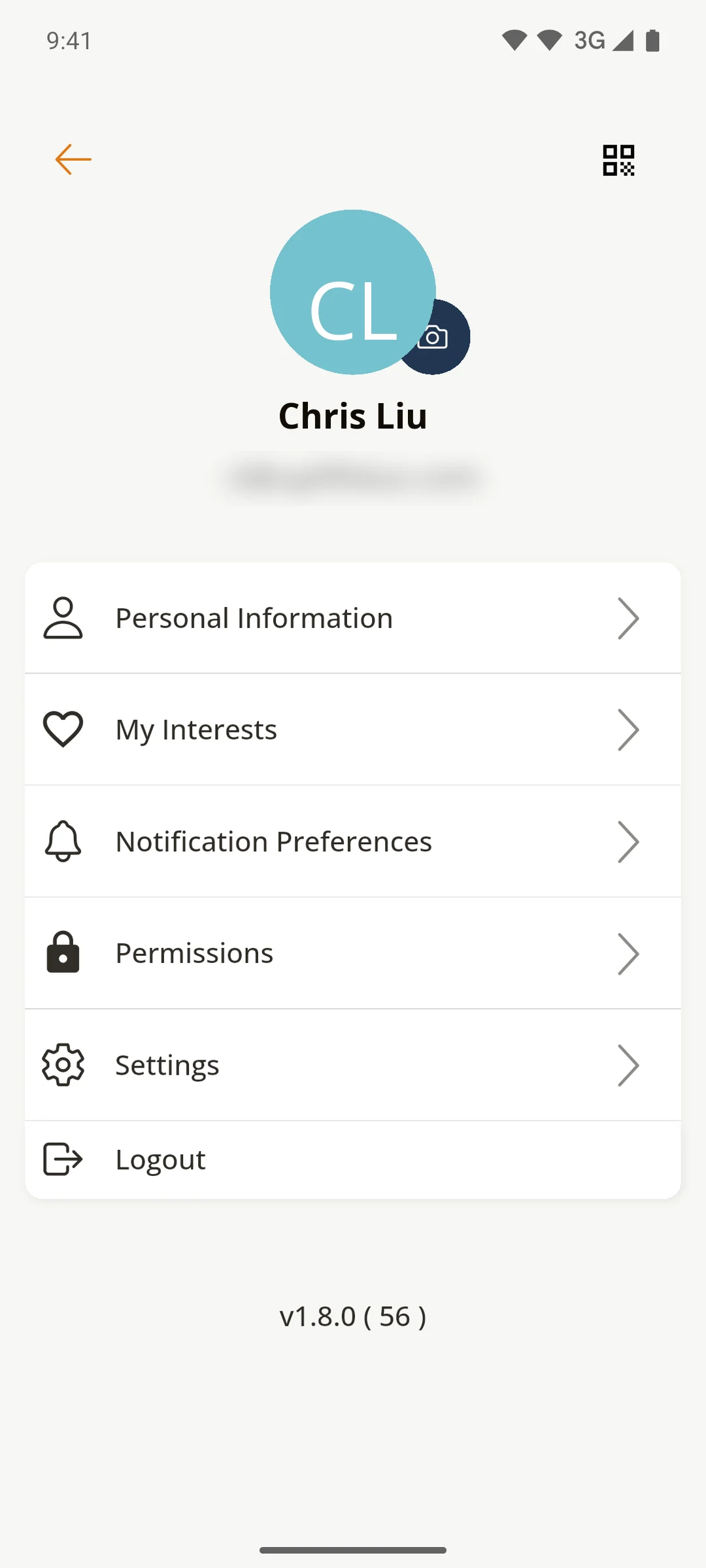
Tap your initials, top left of Home
Your profile opens: photo, details, notifications, settings and sign out.
Add a photo
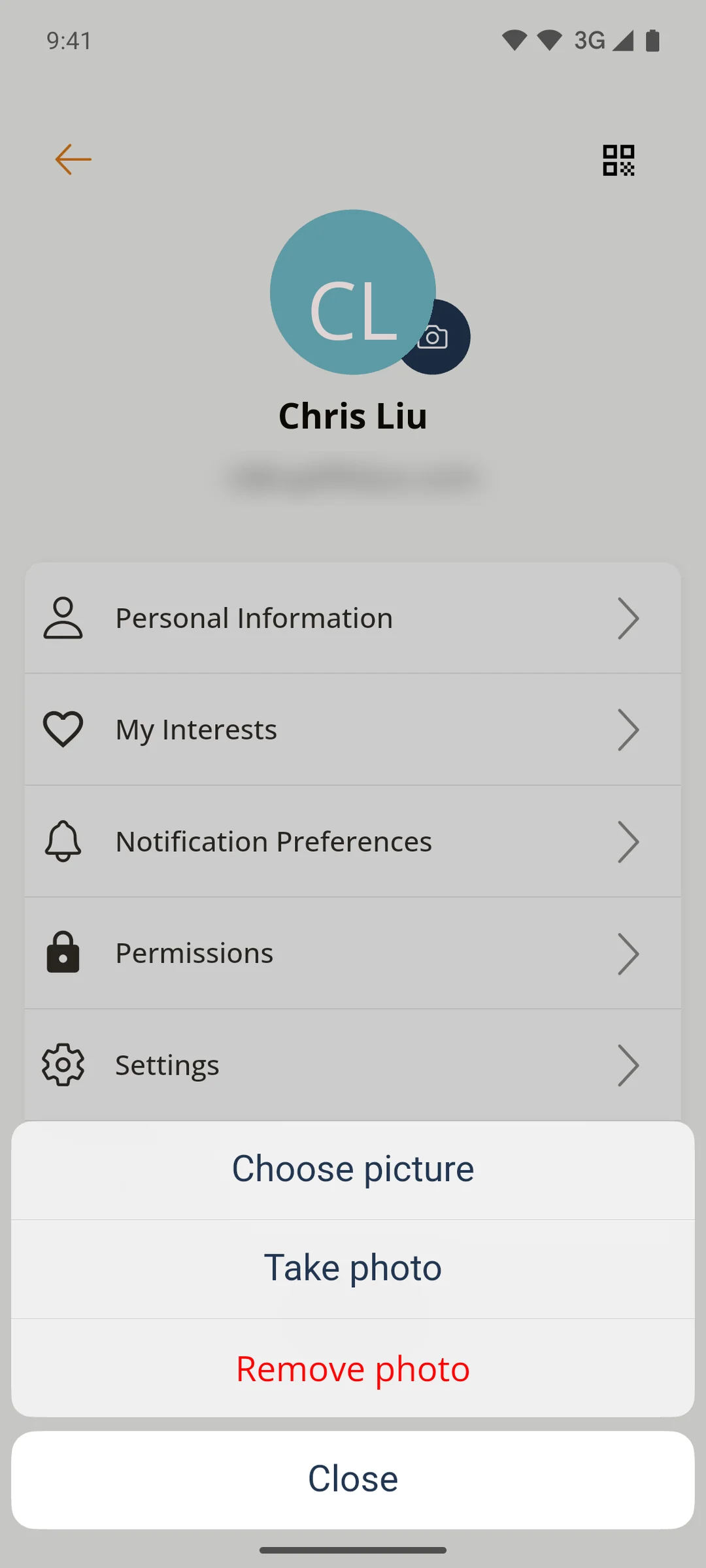
Tap the camera on your avatar, then Choose picture or Take photo. A face makes you far easier to find in the hall.
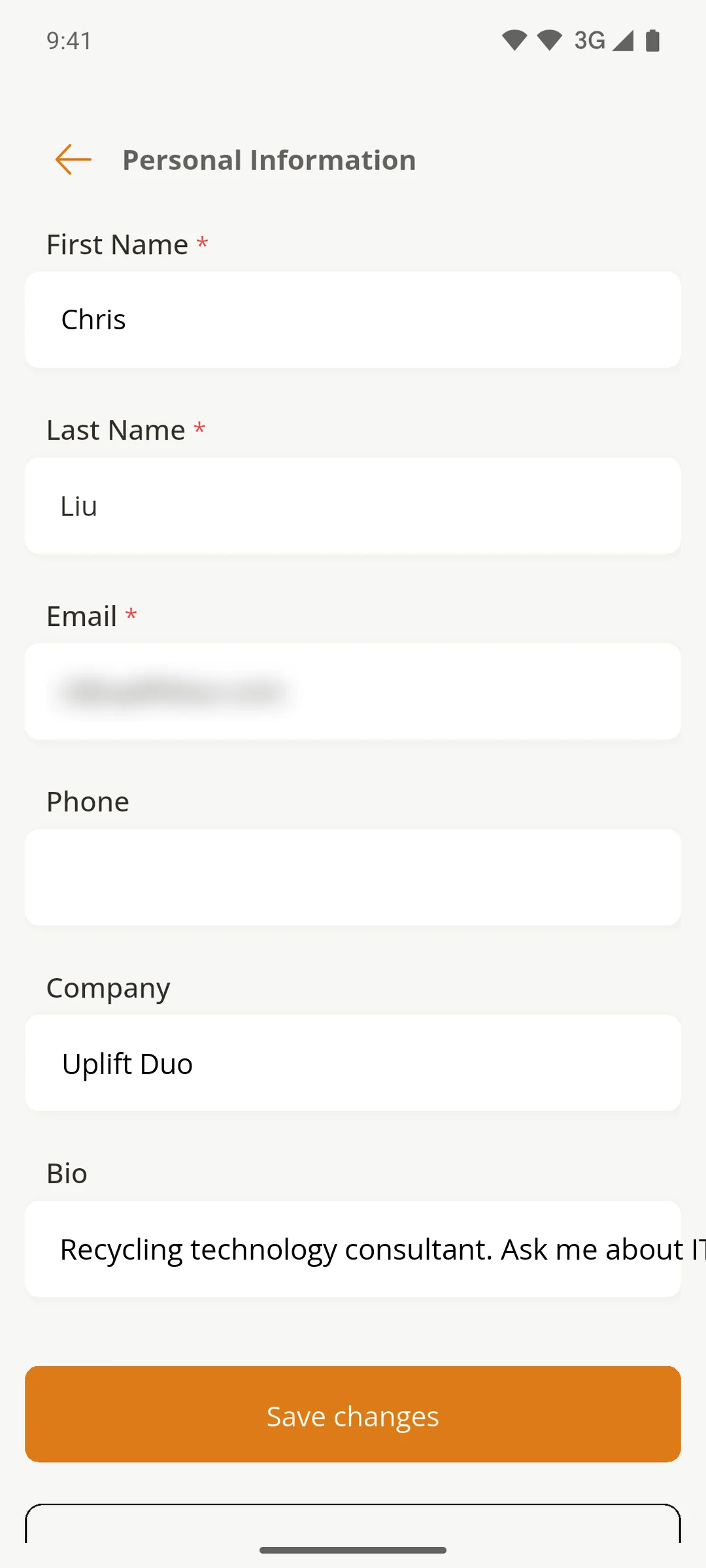
Personal Information
Your company, title and a short bio. Other attendees see these on your card, so this is your introduction. Your email stays private. Tap Save changes.
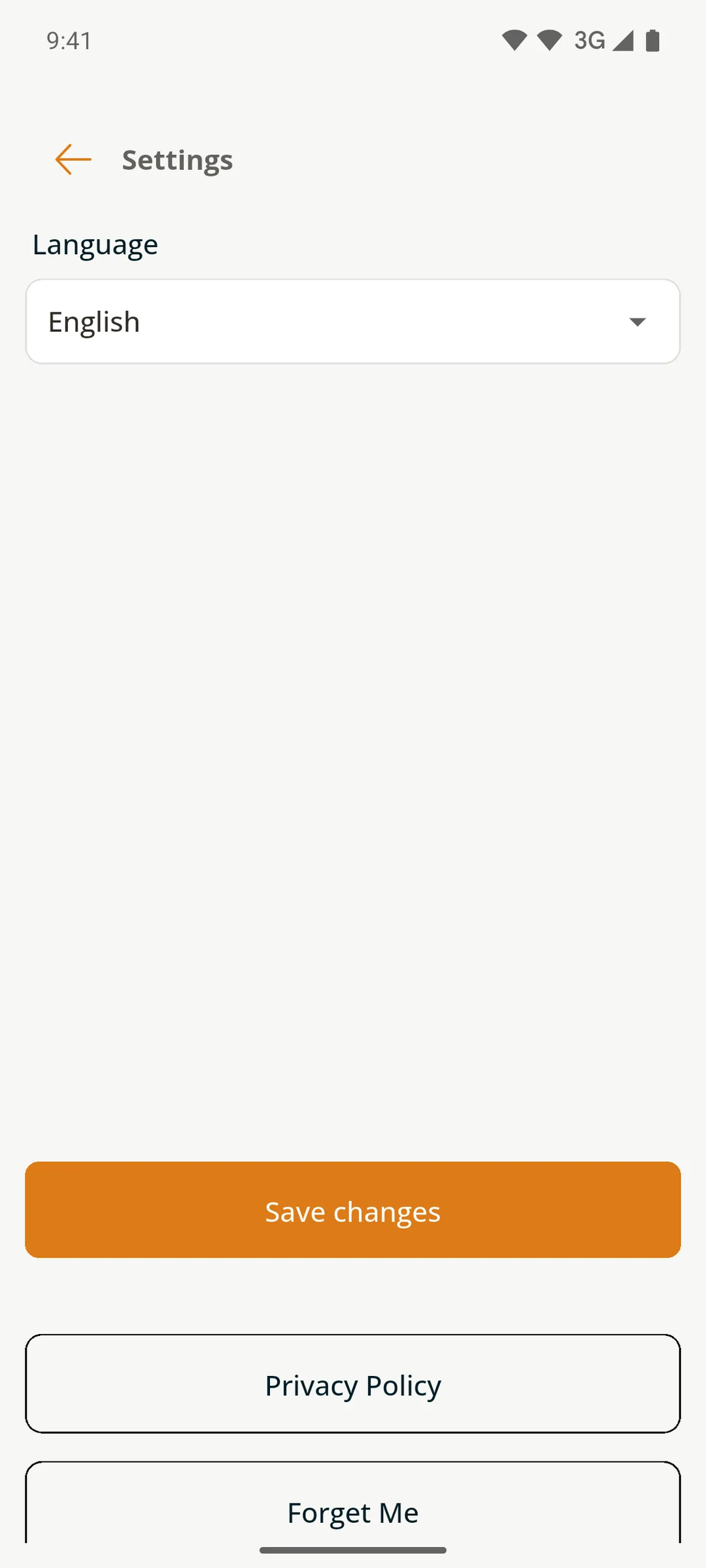
Settings and signing out
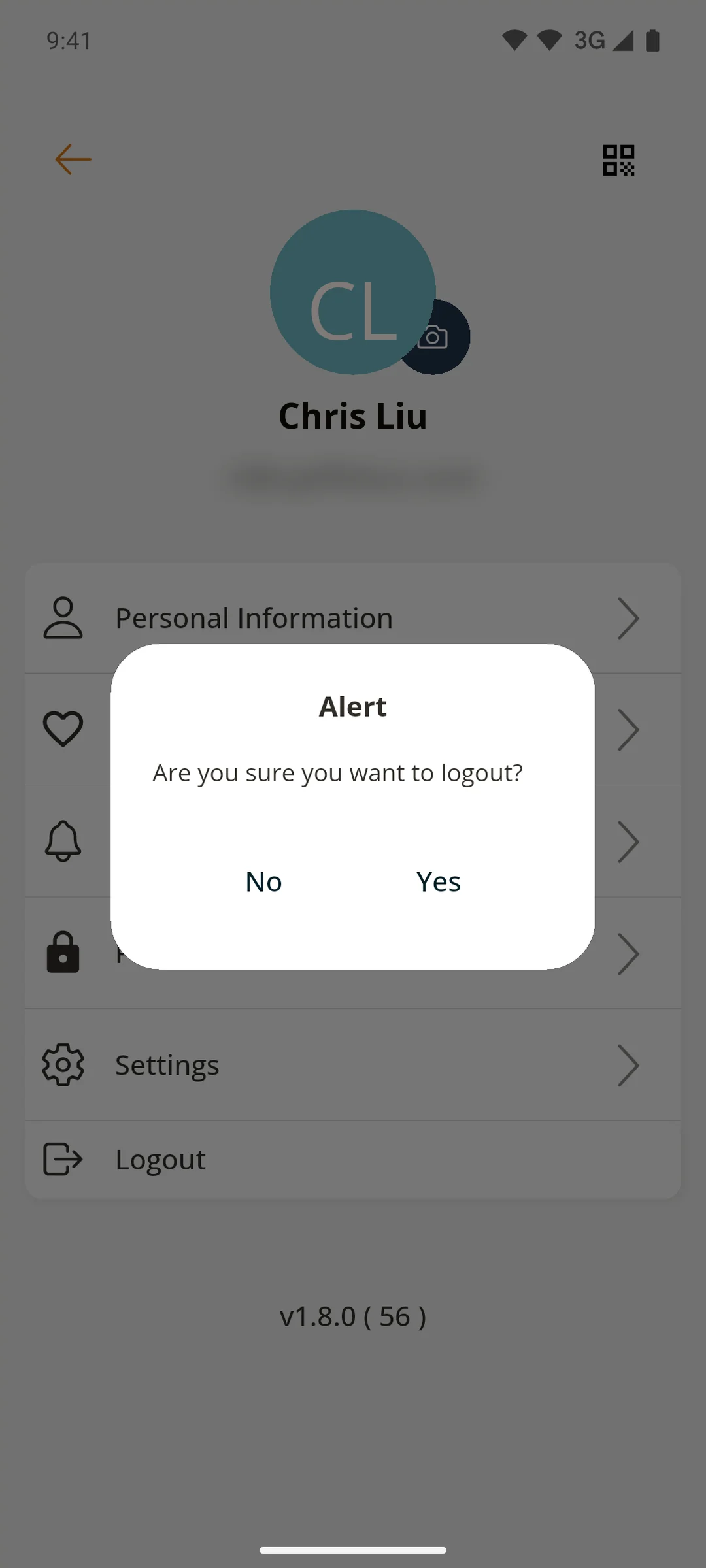
Settings has the language, the privacy policy and Forget Me, which deletes your app account, so only use that if you mean it. Logout signs you out and closes the app; open it again and sign in as in lesson 2.
Related
Alerts and their switches are in lesson 13. Your QR code, the one exhibitors scan, is lesson 14.
Demo: set up your profile (18 seconds)
Profile
Photo options
Personal Information
Settings
Logout asks first
Lesson 13
Notifications
Meeting requests, replies to your messages and answers to your questions arrive as alerts. Two switches decide whether you see them: one on your phone, one in the app.
Say yes when your phone asks
The first time the app opens it asks to send you notifications. If you tapped Don't allow, your phone's Settings app can turn it back on for Resource Recycling Events.
The bell on Home holds your alerts
Meeting requests land there with who sent them. Tap one to open it and respond. The badge clears once you have looked.
Choose which alerts you get
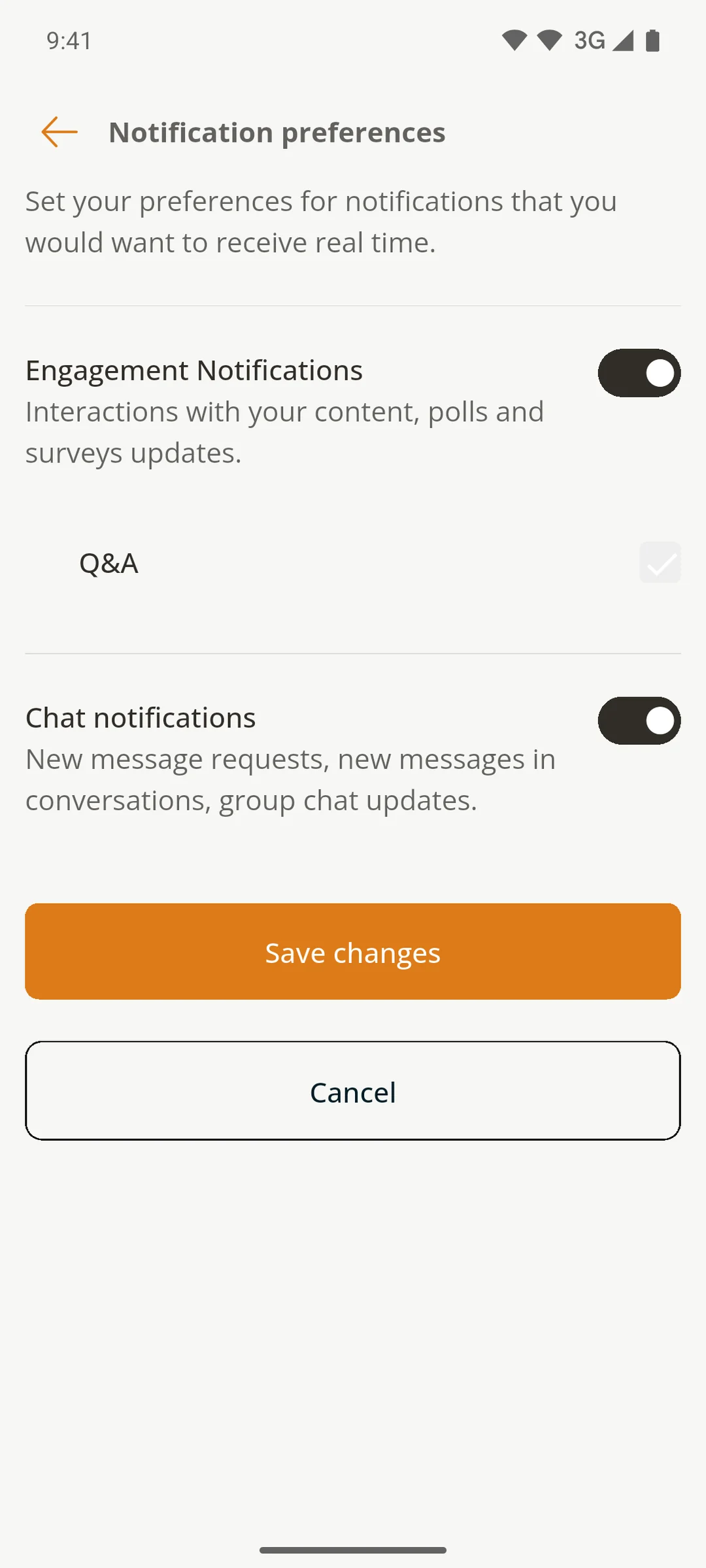
Tap your initials, then Notification Preferences. Switch on Q&A and Chat notifications, then Save changes. Engagement notifications cover polls and reactions to things you post.
Good to know
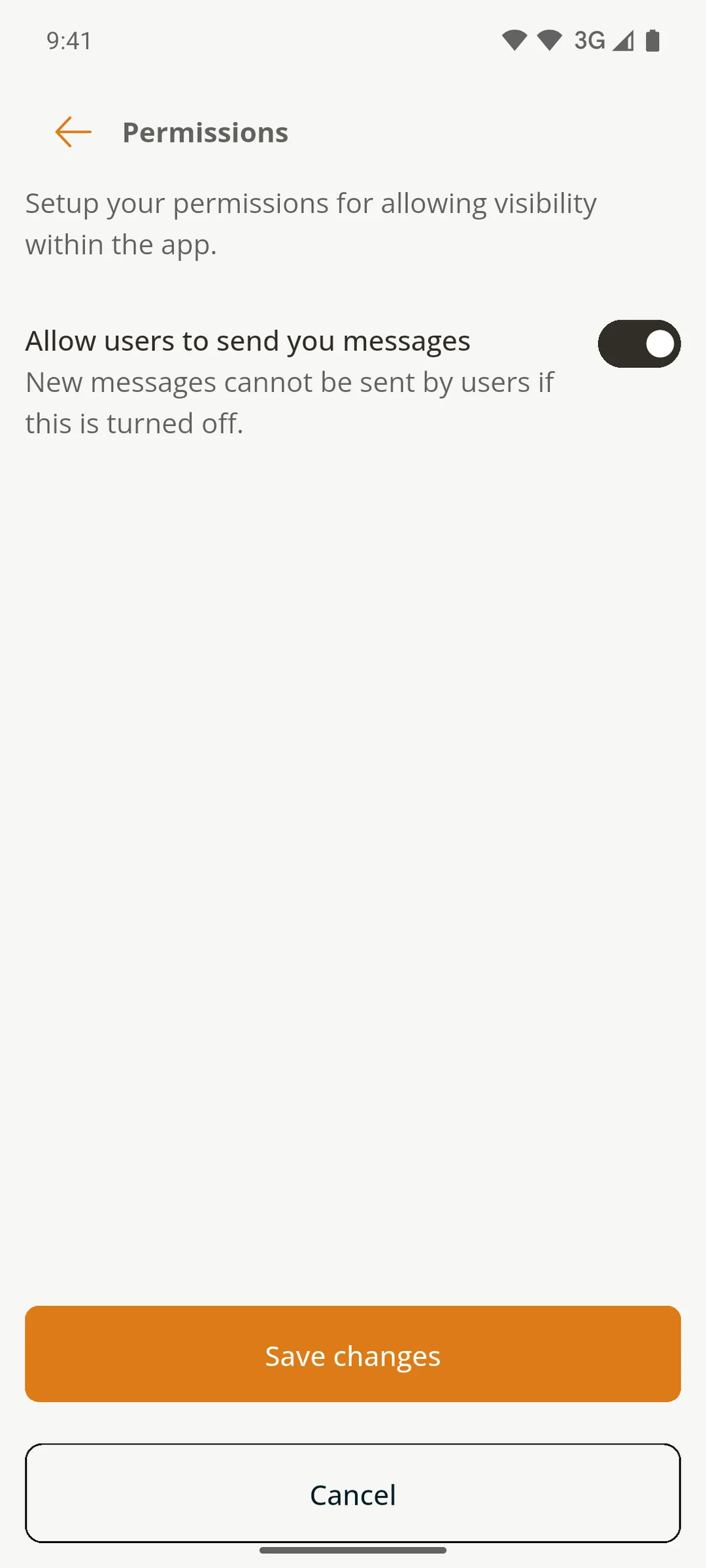
Permissions, one row below Notification Preferences, has the single switch that lets other attendees message you. Off means no one can start a chat with you.
If nothing ever arrives, check the phone side first: Settings, Notifications, Resource Recycling Events, Allow.
Demo: alerts and their switches (14 seconds)
The phone's question
Your alerts, behind the bell
Notification Preferences
Permissions: who can message you
Lesson 14
Your QR code
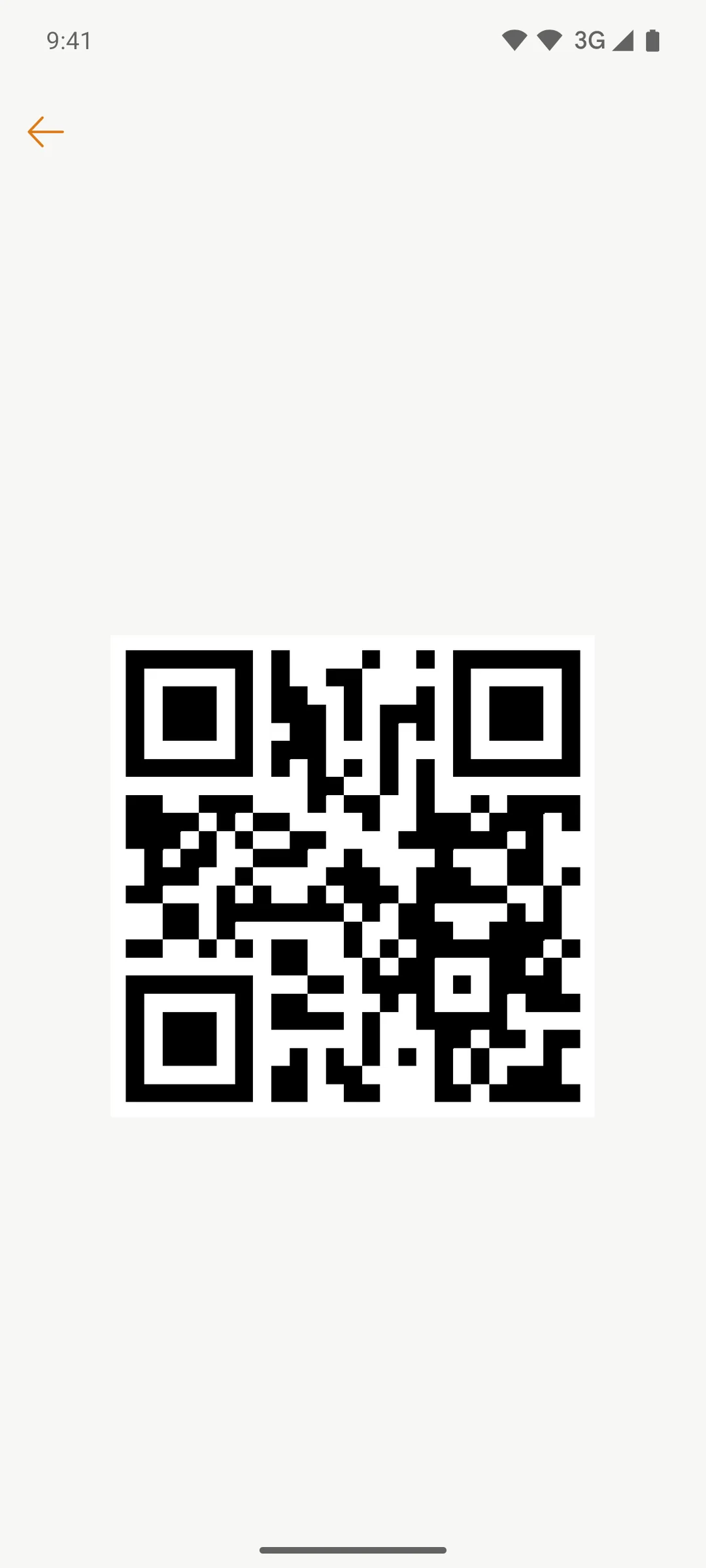
Your profile carries a QR code that stands for you. Exhibitors who use lead retrieval scan it so they can follow up after the show without a business card changing hands.
Tap your initials, top left of Home
Your profile opens.
Tap the QR icon, top right
The code fills the screen. Turn the brightness up if the hall is dim.
Show it to be scanned
The code identifies you to the exhibitor's scanner; it does not show your email or phone number. If you would rather not be followed up, simply do not offer it.
Good to know
The code is not your badge. Registration still prints a badge at the desk; this one is only for exhibitor scanners.
Demo: find your QR code (8 seconds)
The QR icon, top right
Your code
Part 5
Help
When something does not work, and who to ask.
Lesson 15
Fixes for common problems
Most of these come up every year. Search the list or scroll.
It says Incorrect Login Information
Sign in with the email you registered with and your registration confirmation number, exactly as it appears in your confirmation email. Check both for typos, and make sure both agreement switches are on. If you tried several times, wait a little before the next attempt; repeated failures lock the account for a while. Still stuck? See lesson 16.
I do not have a confirmation number
It was in the email you received when you registered, with a subject line about your E-Scrap registration. Search your inbox for "E-Scrap". If someone else registered you, they have it. The registration team can resend it.
My assistant registered me and I cannot sign in
The account is under the email address they used. Sign in with that address and the confirmation number from their email, or ask the registration team to move it to yours.
There is no forgot password link
Correct, and you do not need one: your confirmation number is your password and it never changes. Find it in your registration email.
The app asks me to pick the event every time I open it
That is normal. The app covers several conferences. Tap Continue with 2026 E-Scrap Conference and you are in without signing in again.
Where is the Android version?
On Google Play, under the name Resource Recycling Events. The Google Play button in lesson 1 opens it directly.
Can I use it on my laptop or in a browser?
No. This year the app is phone and tablet only, on iPhone, iPad and Android.
The session times look wrong
Sessions are always shown in New Orleans time, marked UTC-5:00 on the Schedule. If you are looking from another time zone before you travel, remember that 9:00 in the app means 9:00 in the room.
My meeting shows a different time from the one I picked
The time picker uses your phone's clock, and the app then shows the meeting in New Orleans time. If your phone was on home time when you sent it, the shift is your time difference. Send a fresh request with an adjusted time and message your guest to explain, because a sent request cannot be edited.
I need to cancel or change a meeting request
The app cannot edit or cancel a request once it is sent. Message the person (lesson 9) so they know, then send a new request with the right details.
I cannot find the person I want to invite
In the invitee list, type their name and then press the search key on your keyboard; the list only filters after you do. Try the surname alone. If they are still not there, they may not have registered yet.
I searched Attendees and nothing happened
Press the search or enter key on the keyboard after typing. Results do not appear while you type.
My question does not show in the Q&A
Some sessions have a moderator who reads questions before they are published. Give it a minute. If it never appears, it may have been merged with a similar question.
I am not getting notifications
Two places to check: your phone's own settings must allow notifications for Resource Recycling Events, and inside the app, Profile, then Notification Preferences, the switches for chat and Q&A must be on.
Where is the floor plan?
The app itself does not have one, but the venue map does: open More, then E-Scrap Conference Map or E Scrap Exhibit Hall Map. Lesson 8 shows how.
Chat says User does not exist anymore
Update Resource Recycling Events to the newest version in the App Store or Google Play. If it still happens, delete the app, install it again, sign in, and wait two minutes before you open Chat so the attendee list can finish loading.
I cannot find Awards Voting
It is in the More tab, between Event Info and Notes. If it is missing, close the app fully and open it again. If it is still missing, sign out and sign in once more. You can also ask at the registration desk.
A screen is blank or just spinning
Usually a weak connection. Check Wi-Fi or mobile data, close the app fully and open it again. The schedule you have already seen is kept on the phone, so it still works offline.
How do I sign out?
Profile (your initials, top left of Home), then Logout at the bottom. The app closes; open it again to sign in as someone else.
How do I delete my account and data?
Profile, then Settings, then Forget Me. It is permanent, and it removes only your app account, not your conference registration.
Nothing matches that. Try another word, or see lesson 16.
Lesson 16
Need a hand?
Two minutes with a person beats twenty with a phone.
Before the show
Use the contact form at e-scrapconference.com/contact-us. Include the email address you registered with; that is the first thing they will check.
At the Hyatt Regency New Orleans
The conference registration desk, not the hotel front desk, can look up your confirmation number, fix a mistyped email, and get you signed in on the spot.
Keep this guide handy
It works on your phone, so you can open it in the queue at the conference registration desk.
How this page is kept honest
Every screenshot here is a real screen from the app, not a drawing, and every step was
walked before it was written down. The page is checked against each new version of the app
and updated the same week, so if something on your phone does not match what you see here,
the app has moved and this page is about to. Tell us and we will fix it.
The app itself comes from the App Store
and Google Play. Those two
listings are the only places to download it.